

Use FirstName-LastName-Resume.pdf as your default. Swap in a hyphenated cover letter or role tag only when the situation calls for it, and save as PDF unless the job posting specifically requests a .docx. This convention exists because recruiters manage dozens or hundreds of attachments per opening, and applicant tracking systems parse filenames alongside content, so a clean, name-first label prevents your resume from getting lost, mislabeled, or filtered out before a human ever opens it — as explained in this expert comparison of HR software for e-commerce stores.
TL;DR:
- Using your full name first in the filename, followed by the document type, ensures easy recognition by recruiters and preserves clarity across systems.
- Always export and rename your resume before submission, avoiding version labels, draft tags, and unnecessary details that appear unprofessional or cause confusion.
- Stick to ASCII characters, hyphens as separators, and the PDF format unless explicitly instructed otherwise, to maintain compatibility with ATS and filing systems.
- Follow exact naming instructions from job postings, including job IDs or specific formats, to demonstrate attention to detail and improve application chances.
- Consistently name all related application assets, like cover letters and portfolios, using the same structure to create a unified, professional presentation.
Table of Contents
- Resume File Naming Formats and Examples You Can Copy
- Do’s and Don’ts Recruiters Actually Notice
- Which Characters and File Formats Actually Work Everywhere?
- How Do You Follow a Job Posting’s Naming Instructions?
- Quick Checklist and Ready-to-Copy Filename Templates
- Alloquy’s Note on Naming Across Multi-Format Application Assets
- Why Should You Include Your Full Name in the File Name?
- Why the Document Type Belongs in Every Filename
- What Separator Should You Use in a Resume File Name?
- Should You Save Your Resume as a PDF or a Word Document?
- Should You Include Version Numbers or Dates in a Resume File Name?
- Filename Examples and Templates You Can Reuse Right Now
- Why Does Resume File Naming Actually Matter to Recruiters?
- One Small Habit That Fixes This Permanently
- Alloquy: Keep Every Application Asset Consistently Named and Instantly Accessible
- Sources
- FAQ
Resume File Naming Formats and Examples You Can Copy
The base formula recruiters recognize on sight is simple: FirstName-LastName-Resume.pdf. This structure is what career centers and hiring blogs consistently point to as the recruiter-approved gold standard, and it works because it front-loads exactly the information a hiring manager needs to identify the file without opening it.
Variants exist for a reason. Add a role or company only when it genuinely helps, not as a default habit. Here’s how the canonical format expands across common situations:
- General application: Jordan-Reyes-Resume.pdf
- Tailored to a specific role: Jordan-Reyes-Resume-ProductManager.pdf
- Tailored to a specific employer: Jordan-Reyes-Resume-Acme.pdf
- Cover letter companion file: Jordan-Reyes-CoverLetter.pdf
- Portfolio or work sample: Jordan-Reyes-Portfolio.pdf
- Academic CV: Jordan-Reyes-CV.pdf
- Internal referral submission: Jordan-Reyes-Resume-Referral-MSanchez.pdf
Notice the separator throughout: hyphens. Underscores work too, and some job portals even tolerate spaces, but hyphens read cleanly in both file explorers and browser tabs, and they never create the double-underscore visual clutter that shows up when you combine a name with a role (Jordan_Reyes_Resume_ProductManager reads noticeably messier than the hyphenated version).
Here’s a quick numbered rundown of when to add extra detail versus when to keep it bare:
- Applying cold to a general listing? Stick with name plus document type. Nothing else.
- Applying through an agency or staffing firm? Add the client or role if the recruiter asked for it in their instructions.
- Submitting to multiple openings at the same company? Add the role title to prevent overwriting your own file when you save a second version.
- Submitting through an internal referral? Include the referring employee’s initials if your contact suggested it. This isn’t standard, but it helps busy internal recruiters route your file correctly.
- Sending an academic CV instead of a resume? Use “CV” as the document type. Academic hiring committees and career centers treat CV and resume as distinct document types, and mislabeling one as the other can look careless in research or teaching-track applications.
A pattern worth internalizing: every version of this format puts your name first, the document type second, and any qualifier last. That order matters because most file systems and email clients truncate long filenames from the right side when display space is tight, so anything critical (your name) needs to survive truncation. A file named ProductManager-Resume-Jordan-Reyes.pdf technically contains the same information, but it buries the one detail a recruiter needs first.
One more nuance that trips people up: don’t confuse “concise” with “cryptic.” JR-Resume.pdf saves characters but forces a recruiter to guess who JR is. The Indeed career advice team notes that including your full name and document type is what actually helps recruiters locate and identify your file inside a shared applicant folder, and initials defeat that purpose entirely. Spell your name out. The two or three extra characters cost nothing and buy you instant recognition.
If you’re applying to five roles at once, resist the urge to invent shorthand for each one. A slightly longer, fully spelled-out filename beats a shorter one that only makes sense to you.
Do’s and Don’ts Recruiters Actually Notice
Recruiters don’t spend much time thinking about filenames until a bad one interrupts their workflow. That’s exactly when it matters most: the moment they’re scanning a folder of forty attachments looking for yours.
Do this:
- Lead with your full first and last name, every time.
- Include the document type (Resume, CoverLetter, CV, or Portfolio) right after your name.
- Keep the whole filename under roughly 40 to 50 characters when possible.
- Use one consistent separator style across every file you submit.
- Rename the file the moment you export it, before it has a chance to sit in your downloads folder under the wrong name.
Don’t do this:
- Don’t leave the default filename from your word processor or resume builder untouched.
- Don’t add version numbers, “final,” “FINAL2,” or “updated” anywhere in the name.
- Don’t include personal identifiers like your phone number, a nickname, or a birth year.
- Don’t use casual phrases like “my resume” or “resume_for_real_this_time.”
The most common failure isn’t a wildly unprofessional filename. It’s a boring one. A file called resume.pdf tells a recruiter nothing, and if they’ve downloaded three other candidates’ files with the exact same generic name, your attachment can silently overwrite or get buried under one of theirs in a downloads folder. Document1.docx is worse: it signals the applicant didn’t even glance at their own file before sending it. And resume_final_v3.pdf, ironically the most common offender, broadcasts an editing history the recruiter never asked to see. Version numbers and draft labels create an impression of disorganization that has nothing to do with the actual quality of your resume, and that impression forms before a single line of your experience gets read.
Pro Tip: Build your final filename into your export habit, not your submission habit. Rename the file the second you save it as a PDF, before it migrates to your desktop or a shared drive. Waiting until submission time is exactly when copy-paste errors from a previous application slip through.
Which Characters and File Formats Actually Work Everywhere?
Filenames aren’t just cosmetic. Applicant tracking systems, email attachment handlers, and cloud storage links all parse the string of characters in your filename, and some of them handle punctuation and accents inconsistently.
Certain characters cause outright problems. Avoid slashes, backslashes, colons, asterisks, question marks, ampersands, and percent signs. These characters have special meaning in file systems and URLs, and a filename containing them can throw an error on upload or get mangled when a system tries to encode it into a web link. The safest rule, backed by Michigan Technological University’s writing guidance, is to stick to letters, numbers, and hyphens or underscores, and to skip non-ASCII characters entirely, including accented letters, even if your own name includes one.
That last point catches a lot of applicants off guard. If your legal name includes an accent mark, é, ñ, ü, keep the accent in your resume’s body text and in your email signature. Strip it from the filename itself. Plain ASCII characters render identically across every operating system, browser, and applicant tracking system in use today, while accented characters can render as broken symbols or get silently converted into unreadable strings depending on which system touches the file.
Roughly every modern hiring pipeline routes your attachment through at least one automated system before a person sees it, whether that’s an email server, a cloud storage sync, or an ATS ingestion script. A hyphen never breaks that chain. A stray ampersand sometimes does.
On separators: hyphens are the safest default. Underscores are acceptable and widely used. Spaces technically work in most modern systems, but they can encode as “%20” when a filename gets embedded into a URL, which occasionally produces a broken-looking link in older or legacy recruitment software. When in doubt, use a hyphen and move on.
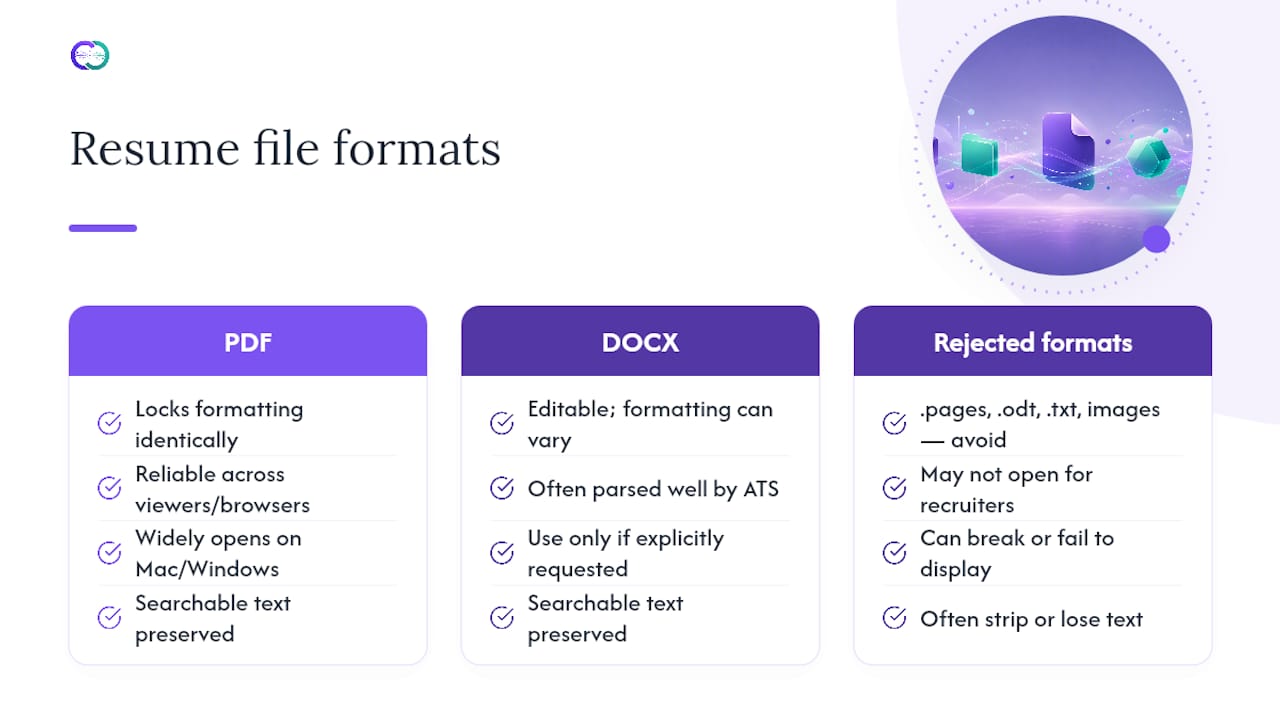
On file type: PDF is the default for a reason beyond tradition. It locks your formatting so your resume looks identical whether it opens on a Mac, a Windows machine, or inside a browser preview pane. Switch to DOCX only when a job posting or applicant portal explicitly asks for it, since some older systems parse Word documents more reliably for keyword extraction. Never submit as .pages, .odt, .txt, or a screenshot image. Those formats either won’t open on the recruiter’s end or strip out the formatting entirely.
How Do You Follow a Job Posting’s Naming Instructions?
Some job postings spell out an exact naming convention: “Name your file LastName_FirstInitial_JobID.pdf” or something similarly specific. Treat that instruction as non negotiable, not a suggestion.
This matters more than it looks like it should. A posting that specifies a naming format is often testing attention to detail before your resume even gets read. Recruiters who bother to write naming instructions into a job posting are frequently doing so because a previous batch of applicants ignored basic formatting cues, and ignoring the instruction can get your application filtered or flagged before a human reviewer sees it.
Here’s how to handle it correctly, step by step:
- Read the posting’s application instructions twice, not just the job description. Naming rules often appear in a separate “how to apply” section, sometimes buried near the bottom.
- Copy the exact format requested, including capitalization and separator style, rather than approximating it from memory.
- Substitute your own details precisely where the instructions leave a placeholder, matching any job ID or requisition number character for character.
- Keep your own additions minimal if the instructions only specify part of the format. If they require “LastName_Resume” but don’t mention a role title, don’t add one on your own.
- Save and rename in one motion immediately after exporting, so you don’t accidentally attach a differently named draft.
If no naming instructions are given, default back to the standard FirstName-LastName-Resume.pdf format. Before you hit submit, run a fast verification pass: does the filename match any job ID or requisition number mentioned in the posting? Does the file extension match what was requested? Is there any leftover version label, draft tag, or old company name from a previous application still sitting in the filename? That last check catches more mistakes than any other, because it’s the easiest one to make when you’re moving fast between multiple applications.
Quick Checklist and Ready-to-Copy Filename Templates
Run through this five-step check every time before you attach a resume file, especially if you’re applying to more than one role in a sitting:
- Rename at export, the instant you save the file as a PDF, not later.
- Confirm the extension matches PDF unless the posting specifically asked for DOCX.
- Open the file one more time to confirm it’s the correct version and not an older draft.
- Match any job posting instructions exactly, including job ID numbers and capitalization.
- Attach the correct file by name, not by memory, especially when multiple tabs or folders are open.
Here are templates organized by situation, ready to copy and fill in with your own details:
If you’re managing several tailored versions for different openings, create a dedicated folder per application round rather than relying on the filename alone to keep them apart. Store the job posting or a screenshot of the listing in that same folder. This way, if you ever need to confirm exactly what a role required six weeks after applying, you’re not relying on memory or a filename that’s already started to feel ambiguous.
Alloquy’s Note on Naming Across Multi-Format Application Assets
A resume file is rarely the only asset in play anymore. Cover letters, portfolio links, work samples, and increasingly, interactive profiles all travel alongside the static PDF, and multi-format resume assets are becoming a normal part of how candidates present themselves.
Consistent naming becomes more valuable, not less, once a portfolio link enters the picture. If your resume file is Jordan-Reyes-Resume.pdf but your portfolio link is titled something unrelated, or worse, generic, you’ve broken the visual thread a recruiter uses to connect your materials. StylingCV’s naming guide points out that consistent naming across resume, cover letter, and portfolio files signals organization and keeps a candidate’s materials grouped together in a recruiter’s mind, and that signal carries over just as naturally to a public portfolio URL or a shared link title.
A few practical habits keep that consistency intact:
- Name your portfolio link’s public title the same way you name your resume file: full name first, document or asset type second.
- If your platform lets you customize a slug or URL, use your name as the base rather than a generic default string.
- Keep the same separator style (hyphens, ideally) across your resume filename, your cover letter filename, and any public-facing link title.
- Update every asset’s name together when you change roles or job targets, rather than letting one drift out of sync with the others.
Pro Tip: If you maintain a portfolio alongside your resume, treat both as one naming system rather than two. A recruiter who sees Jordan-Reyes-Resume.pdf and then clicks through to a portfolio also branded under your name experiences zero friction between the two touchpoints. That continuity is part of what a platform like Alloquy is built to preserve when it turns a static resume into a linked, evidence-backed profile.
Why Should You Include Your Full Name in the File Name?
Your full name belongs at the very front of the filename, not buried in the middle or left out entirely. A recruiter scanning a folder full of applications is reading filenames the way you’d scan a bookshelf: left to right, fastest recognition first.
This isn’t just a courtesy. Applicant tracking systems and recruiter inboxes both often display filenames truncated to a set character length, and truncation almost always cuts from the right side. If your name isn’t among the first characters, it may not display at all in a preview pane or a compressed file list. Jordan-Reyes-Resume.pdf survives truncation intact. Resume-For-Software-Engineer-Position-Jordan-Reyes.pdf does not, and a recruiter glancing at a shortened version might see nothing but “Resume-For-Software…” with your actual identity cut off entirely.
Full name also matters more than initials or a nickname. J-Reyes-Resume.pdf or Jay-Resume.pdf forces extra cognitive work onto the person trying to match your file to your application. Indeed’s guidance on file naming is direct on this point: your full name and the document type together are what let a recruiter identify and retrieve your resume inside a shared folder, especially when that folder might hold responses from a hundred other applicants.
If your name is unusually long or includes a middle name you don’t typically use professionally, default to the name you use on your resume itself, first and last. Consistency between your resume header and your filename avoids the small but real confusion of a recruiter double checking whether Jonathan on the resume and Jon in the filename are the same candidate.
Why the Document Type Belongs in Every Filename
After your name, the single most useful piece of information you can add is what kind of document the file actually is. Resume, CV, or CoverLetter, spelled out plainly, tells a recruiter what they’re opening before they open it.
This becomes essential the moment you’re submitting more than one file per application. A resume and a cover letter that both land in an inbox need to be distinguishable at a glance, and “Resume” versus “CoverLetter” does that instantly. Compare that to two files named only Jordan-Reyes.pdf and Jordan-Reyes-2.pdf, where the recruiter has to open both just to figure out which is which.
Keep the document type word short and standard. “Resume,” “CV,” and “CoverLetter” are universally understood. Avoid inventing your own shorthand like “RES” or “CL,” since abbreviations that make sense to you may not register instantly for someone scanning fifty filenames in a row. The whole advantage of including document type disappears if the recruiter has to pause and decode it.
One nuance worth flagging: resume and CV aren’t interchangeable labels in every context. In the United States, “resume” is standard for most industry roles, while “CV” typically signals an academic, research, or international application. Using the wrong term isn’t a filename crime, but it’s a small mismatch that a hiring committee in academia will notice, since it suggests the applicant hasn’t tailored their materials to the norms of that field.
Keep the whole filename concise even as you add the document type. FirstName-LastName-Resume.pdf is four meaningful elements and nothing wasted. That’s the target length to aim for across every file you send.
What Separator Should You Use in a Resume File Name?
Hyphens and underscores both work, but they’re not perfectly interchangeable, and picking one deliberately beats defaulting to whatever your keyboard happens to produce first.
Hyphens read as more professional in most contexts. They’re the standard separator in web URLs, they display cleanly in every operating system’s file browser, and they don’t create the visual “gap” that underscores sometimes produce depending on font rendering. FirstName-LastName-Resume.pdf simply looks tidier than FirstName_LastName_Resume.pdf side by side, even though both function identically.
Underscores aren’t wrong. Some applicant tracking systems and older recruiting platforms were built with underscore separated filenames as an expected convention, and plenty of career centers still teach it as an acceptable standard. If a job posting explicitly requests underscores, use them without hesitation.
What you should actively avoid is mixing separators within a single filename, and mixing them across your set of application files. Jordan-Reyes_Resume.pdf, with a hyphen in one spot and an underscore in another, looks like an error even though it technically functions fine. And if your resume uses hyphens while your cover letter uses underscores, that small inconsistency chips away at the polished impression you’re trying to build across your whole application packet.
Spaces are the riskiest option of the three. They usually work fine in a direct file attachment, but they can encode strangely, showing up as “%20” when a file gets embedded into a shared drive link or a web based applicant portal, per Michigan Tech’s naming guidance. Skip spaces and non-ASCII characters entirely, and you’ll never have to think about this issue again. Pick hyphens as your default, stay consistent, and move on.
Should You Save Your Resume as a PDF or a Word Document?
PDF, by default, every time, unless the job posting says otherwise. This isn’t a matter of personal preference. It’s about what actually survives the trip from your computer to the recruiter’s screen intact.
A PDF locks your formatting in place. The fonts, spacing, margins, and layout you designed will look identical whether the recruiter opens it on a Mac, a Windows laptop, a tablet, or straight in a browser preview window. A Word document, by contrast, can shift its formatting depending on which version of Word, or which font substitutions, the recipient’s system applies. Zety’s guidance on file naming puts it plainly: PDF is the safe default for preserving layout, and DOCX should only come into play when a posting or portal specifically asks for it.
Why would a posting ask for DOCX at all? Some older applicant tracking systems parse Word documents more reliably when extracting text for keyword matching, since certain PDF export methods produce inconsistent underlying text layers that confuse a parser. If you’re applying somewhere with legacy infrastructure, and the posting flags a DOCX requirement, comply without arguing the point internally. This is exactly the kind of instruction covered under following posted naming and format rules.
What you should never submit, under any circumstance, is a .pages file, an .odt file, a plain .txt file, or a screenshot image of your resume saved as a .jpg or .png. Pages files often won’t open at all outside the Apple ecosystem. Screenshots strip out all searchable text, which breaks any ATS parsing entirely and makes your resume invisible to keyword search inside an applicant database, a topic worth understanding more deeply if you’re optimizing for ATS keyword matching as part of your broader application strategy.
Should You Include Version Numbers or Dates in a Resume File Name?
No. Strip out every version number, draft label, and date before you send anything. Resume_v2.pdf, Resume_Final.pdf, and Resume_March2026.pdf all commit the same mistake: they broadcast your private editing process to someone who never asked to see it.
The instinct to add version tracking makes sense from your side of the screen. You’ve probably saved four or five drafts while polishing your resume, and labeling them helps you keep your own files straight. But once a file is ready to submit, that internal history needs to disappear from the filename entirely. A recruiter doesn’t need to know this is your third revision, and seeing “v3” or “FINAL2” in a filename can actually create an impression of disorganization that has nothing to do with how strong your actual resume content is.
Dates cause a subtler problem. A filename like Resume_Jan2026.pdf seems harmless, maybe even helpful for your own tracking, until you’re still using that same file in April and the date now reads as stale or careless. Worse, if you’re applying to multiple roles across a few months, a dated filename can make a recruiter wonder whether they’re looking at an outdated version of your materials.
Manage your own drafts however works for you, numbered folders, a dated internal filename, a separate “drafts” directory, whatever system keeps you organized on your own machine. Just rename the file to its clean, final format the moment it’s ready to leave your computer. That single habit, renaming at export rather than at submission, prevents nearly every version-number mistake before it happens.
Filename Examples and Templates You Can Reuse Right Now
Sometimes the fastest way to get this right is to have a short list of proven examples sitting in front of you instead of building the format from scratch every time you apply.
Here’s a compact set organized by the situation you’re actually facing:
- Applying broadly, no specific tailoring: Alex-Morgan-Resume.pdf
- Applying to one specific role you’re targeting hard: Alex-Morgan-Resume-DataAnalyst.pdf
- Sending a cover letter alongside it: Alex-Morgan-CoverLetter.pdf
- Following a staffing agency’s naming request: Alex-Morgan-Resume-Requisition4471.pdf
- Submitting an academic or research position CV: Alex-Morgan-CV.pdf
- Sharing a portfolio link title to match: Alex-Morgan-Portfolio
Each of these follows the same underlying logic: name first, type second, optional qualifier last, hyphens throughout, and nothing that reveals your private drafting history. Once you internalize that order, you can build a correct filename for almost any application scenario in seconds without needing to look it up again.
Keep a version of this list saved somewhere you’ll actually reference it, a notes app, a sticky note near your desktop, whatever sticks. The value isn’t in memorizing every template. It’s in having a fast default so you’re never tempted to just hit “save” on whatever Word or Google Docs names the file automatically, which is usually a string like “Untitled document” or a truncated version of your resume’s first line of text.
Why Does Resume File Naming Actually Matter to Recruiters?
Behind every naming rule is one straightforward operational reality: recruiters are managing volume, and your filename is either helping them or working against them.
A single job posting can pull in dozens to hundreds of applications, arriving as email attachments, ATS uploads, and shared drive submissions all at once. Recruiters sorting through that volume often make split-second identification decisions purely from the filename in a folder view, before a resume ever gets opened. A file that instantly identifies who it belongs to and what it contains reduces the friction of just locating your materials again after the initial review, whether that’s for a follow-up call, a second-round comparison, or forwarding your resume to a hiring manager down the hall.
There’s a technical layer here too. Applicant tracking systems don’t just store your file, many of them parse the filename itself as metadata, and a name that includes special characters or non-ASCII symbols can trigger encoding errors during upload or storage. A clean, ASCII-only, hyphen-separated filename sidesteps that risk entirely, which matters more than it sounds like it should when you’re one of several hundred submissions hitting the same system in a single day.
And then there’s the simplest reason of all: forwarding. Recruiters routinely pass strong candidates’ resumes along to a hiring manager, a team lead, or a second interviewer, often via email with zero added context. A well-named file survives that handoff intact. A file still named “resume.pdf” or “Document1.docx” forces every person downstream to rename it themselves just to keep multiple candidates straight, and that’s friction you can eliminate before it ever starts.
One Small Habit That Fixes This Permanently
I’ve watched a recruiter scroll through a downloads folder with 140 attachments in it, hunting for one specific candidate’s resume among a wall of files labeled “resume (1).pdf,” “resume (2).pdf,” and “Document.docx.” That folder is the honest, unglamorous reality behind every job posting, and it’s exactly why filename discipline pays off disproportionately to how little effort it takes.
The single habit that fixes this for good: rename the file the moment you export it, not the moment you’re about to hit submit. Build it into your export workflow the same way you’d build in a spell check pass. Save the templates from this guide somewhere you’ll actually see them, and run your final filename past the quick checklist above before every attachment goes out. It takes ten seconds and it’s one of the few application details entirely within your control.
Alloquy: Keep Every Application Asset Consistently Named and Instantly Accessible
A tidy filename solves the static resume problem. It doesn’t solve what happens next, when a recruiter wants more context than a PDF can give them, work samples, project details, verified outcomes tied to real documents rather than a bullet point claiming them.
Alloquy exists for that next step. It connects the Google Drive documents behind your work, performance reviews, project files, client decks, to a public, interactive profile where a recruiter’s AI assistant can ask questions and get evidence-backed answers grounded in your actual materials, not just a static claim on a page. That means your Jordan-Reyes-Resume.pdf and your Alloquy profile can carry the exact same naming discipline this guide just walked through, so a recruiter moving from your attachment to your portfolio link experiences one continuous, organized candidate story rather than two disconnected files. Alloquy also generates tailored resumes and cover letters straight from that same verified data, keeping every document you send traceable back to real source material.
Naming rules from a job posting always come first, follow them exactly as written. Once your resume file itself is squared away, create a free Alloquy profile and see how a linked, queryable portfolio fits alongside the file you just renamed.
Sources
- Characters to avoid | Michigan Technological University
- How to name your resume and cover letter files | Indeed
- How to Name Your Resume File in 2026: The Recruiter-Approved Guide 2026 | StylingCV
- What to Name a Resume File & Cover Letter (+Examples) | Zety
- The (Simple) Guidelines You Should Follow When Naming Your Resume and Cover Letter Files – Gateway Career Center | Lafayette College
FAQ
How Should I Label a File for a Resume?
Use your full first and last name followed by the document type, like Jordan-Reyes-Resume.pdf. This lets a recruiter identify both the applicant and the document type instantly without opening the file.
How Should I Name a PDF Resume File?
Follow the same name-plus-type format regardless of file type: FirstName-LastName-Resume.pdf. PDF is the recommended default format since it preserves your layout across every device and operating system.
How Do I Professionally Name a File in General?
Keep it short, use your full name first, include what the document actually is, and separate words with hyphens instead of spaces or special characters. Avoiding non-ASCII characters and symbols keeps the file compatible across nearly every system it might pass through.
What Do You Call a Folder of Resume Files?
There’s no single official term. Most job seekers simply label it by employer name or role, such as “Acme-Applications” or “ProductManager-Roles,” and keep tailored resume versions organized inside it by the same naming convention used for the files themselves.
Can Alloquy Help Me Manage My Resume and Portfolio Naming?
Alloquy lets you build a linked portfolio from your existing documents and generate application materials from verified data, which naturally supports keeping your resume filename and your public profile name aligned. Start with a free profile to see how the naming carries across both.