
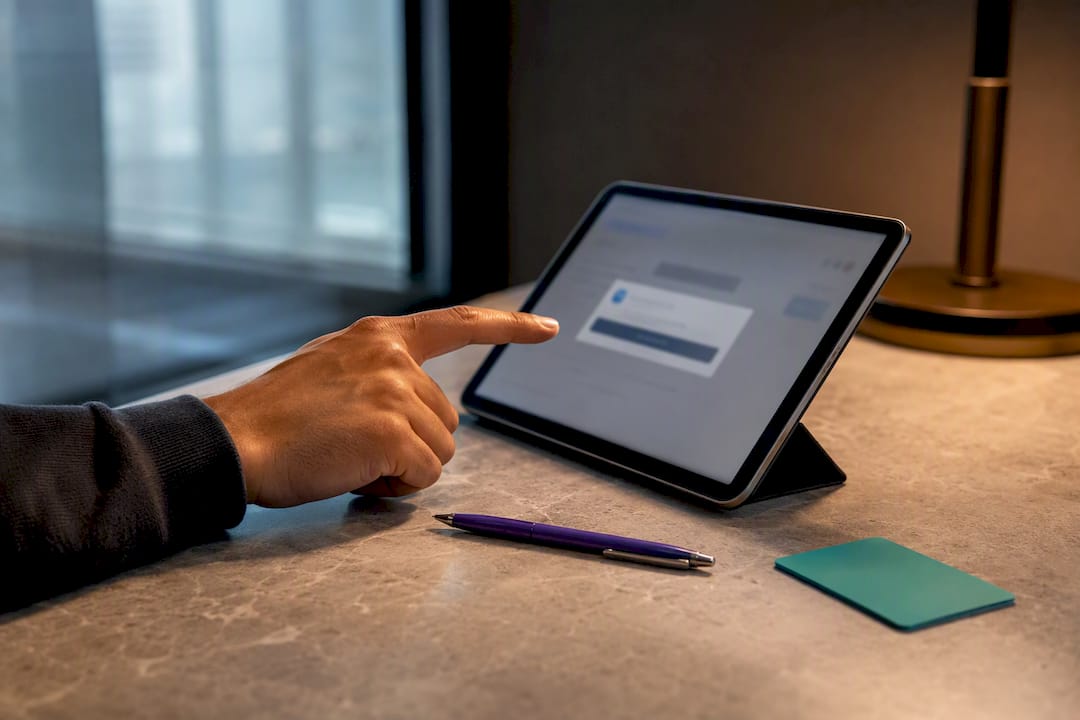
Open the file in Google Drive, click Share, set General access to “Anyone with the link,” choose the Viewer role, and click Copy link. That link is now ready to paste into an application or email. For formal applications, the stronger move is still uploading a PDF export directly, since a Google Drive resume link works best for networking, recruiter requests, or quick shares rather than as your primary submission format.
TL;DR:
- Ensuring the Google Drive link has “Anyone with the link” access and remains set to Viewer prevents most sharing issues.
- Testing the link in an incognito window and from a device not signed into Google catches permission problems before sending.
- PDFs are more reliable for formal applications since they preserve formatting and are less prone to technical glitches.
- When sharing a Drive link, revert permissions or restrict access once the recipient confirms they can view the file.
- A static PDF typically suffices, but for in-depth projects or dynamic portfolios, an interactive platform provides better context and engagement.
Table of Contents
- How to Create and Test a Google Drive Resume Link
- Should You Share a Drive Link or Upload a PDF?
- Why Won’t My Resume Link Open for the Recipient?
- How to Limit Exposure When Sharing a Resume Link
- A Five-Gate Checklist for Publishing Your Drive Resume Link
- What Actually Matters in This Process
- When a Drive Link Isn’t Enough
- Sources
- FAQ
How to Create and Test a Google Drive Resume Link
Getting a working link takes under a minute, but skipping the verification step is how most sharing failures happen. Follow this sequence on desktop, then check the mobile variant if you’re working from a phone.
Desktop steps:
- Open Google Drive and confirm you’re looking at the final version of your resume, ideally already exported or saved as a PDF.
- Right-click the file (or open it) and select Share or Get link.
- Under “General access,” change the setting from “Restricted” to “Anyone with the link.”
- Set the permission level to Viewer. Never leave it on Editor or Commenter for an application.
- Click Copy link, then paste it somewhere safe before sending it anywhere.
Mobile steps (Google Drive app):
- Tap the three-dot menu next to your resume file.
- Select Share or Get link.
- Confirm access is set to “Anyone with the link” and the role is Viewer.
- Tap Copy link.
Sometimes you need more than the standard preview link, particularly if a recruiter’s system doesn’t render Drive’s viewer well. Drive supports a couple of predictable URL patterns: the standard share link looks like drive.google.com/file/d/FILE_ID/view?usp=sharing, while a direct-download version follows drive.google.com/uc?export=download&id=FILE_ID. The download variant skips Drive’s preview screen entirely, which is convenient but bypasses some of the built-in protections that come with the standard preview link, so use it only when you’re comfortable with that trade-off.
Before you send anything, run this checklist:
- Open the link in an incognito or private browser window to confirm it doesn’t ask you to sign in.
- Paste the URL into a plain text editor first to check for accidental truncation or line breaks.
- Double-check the permission still reads “Viewer” and hasn’t reverted to “Restricted.”
Pro Tip: Test your link from a device that isn’t logged into your Google account. That’s the fastest way to catch a permissions mistake before a recruiter does.
Should You Share a Drive Link or Upload a PDF?
Application portals and applicant tracking systems parse resumes for keywords, formatting, and structure. A PDF upload keeps that structure intact every time. A Drive link introduces an extra step, an extra click, and an extra point of failure, which is why career advisors generally recommend PDFs for anything submitted through a formal application system.
Drive links still earn their place, just in different contexts:
- A recruiter messages you directly on LinkedIn and asks for a quick look at your resume.
- You’re networking and want to drop a resume link into an email signature or a portfolio site.
- You’re sharing a draft with a mentor or career coach for feedback before finalizing it.
The most reliable workflow is keeping a master version as a Google Doc, then exporting a tailored PDF for each application. That way your working file stays editable and easy to update, while every employer receives a clean, static document that won’t reflow oddly or lose formatting on their end. Reserve the shareable link for situations where someone specifically asks for it or where a static PDF genuinely isn’t the expected format.
Why Won’t My Resume Link Open for the Recipient?
Most access complaints trace back to one of four causes, and you can usually diagnose the problem in under two minutes.
- Permission settings reverted or were never changed. Reopen Share settings and confirm “Anyone with the link” and Viewer are both still active. Also check that the file wasn’t accidentally moved into a restricted folder or deleted.
- The recipient is signed in to the wrong Google account. If someone sees a “Request access” screen despite correct settings, the usual cause is a signed-in personal or work account conflicting with the link. Ask them to try an incognito window or sign out and reload.
- The link got mangled in transit. Email clients and messaging apps sometimes insert line breaks or auto-formatting that truncates a long URL. Paste links as plain text, and skip third-party URL shorteners for anything tied to a job application, since some corporate filters flag or strip them automatically.
- A corporate firewall is blocking external cloud domains. Some companies’ mail gateways block or rewrite links from consumer cloud storage before they ever reach the recipient’s inbox. This is common enough that it’s worth planning around rather than treating as a fluke.
If a firewall block seems likely, don’t keep troubleshooting the same link. Attach a PDF version directly to your email as a backup, and mention in your message that you tested the link yourself and it opened cleanly on your end. That one sentence signals competence rather than carelessness.
Pro Tip: If a recruiter reports a broken link, resend the PDF as an attachment immediately rather than debugging permissions over email. Speed matters more than proving the link was right all along.
How to Limit Exposure When Sharing a Resume Link
“Anyone with the link” means exactly what it says: anyone who has the URL can open the file, whether or not you intended them to see it. That’s an acceptable risk for a resume, since resumes are meant to be seen, but it’s worth handling deliberately rather than by default.
- Set the role to Viewer only. Never share a resume with Editor or Commenter access.
- If you’re sharing temporarily for a specific request, revert general access back to “Restricted” once the recipient has confirmed the file opened.
- Skip URL shorteners for job-related links. They add an opaque middle step that some corporate security tools automatically distrust.
- Keep a backup copy of every resume version, and periodically audit your Drive sharing settings to make sure nothing was left publicly open longer than intended.
- If your resume includes anything sensitive (a personal phone number tied to other accounts, unlisted addresses), consider a password-protected file or a more controlled transfer method instead of an open link.
A pre-send test and a habit of reverting access windows after short-term use closes most of the practical gap between convenience and exposure. Sending a link that triggers a “request access” screen doesn’t just fail technically. It reads as a mistake to whoever receives it, right when you’re trying to make a strong first impression.
A Five-Gate Checklist for Publishing Your Drive Resume Link
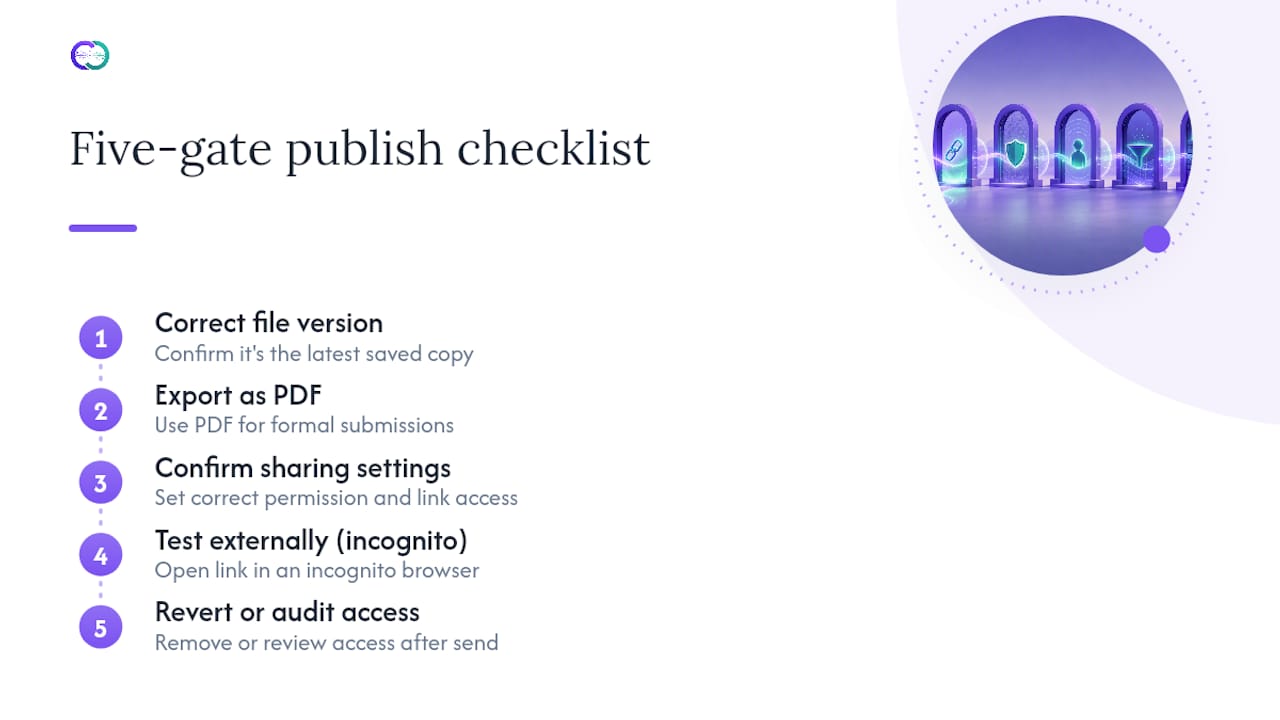
Before any resume link leaves your outbox, run it through five checks: correct file version, correct export format (PDF for anything formal), sharing settings confirmed, an external test from an incognito window, and a reminder to revert or audit access afterward. Missing any one of these gates is how broken links and awkward follow-up emails happen.
This same discipline scales into something bigger than a single resume link. A static file, however cleanly shared, only ever shows a snapshot. Structuring your Drive files as part of a verified portfolio instead of a one-off attachment lets recruiters explore your work rather than just download it. If you’re building out project samples to support that kind of portfolio, a recruiter-approved project selection is worth reading before you start linking files.
What Actually Matters in This Process
Most advice on this topic focuses entirely on the mechanics of getting a link to work, and skips the more useful question: what does a hiring team actually do with a resume link once they have one? In our analysis, the honest answer is not much. A Viewer link to a static PDF gives them exactly what a paper resume gave them decades ago, just delivered differently.
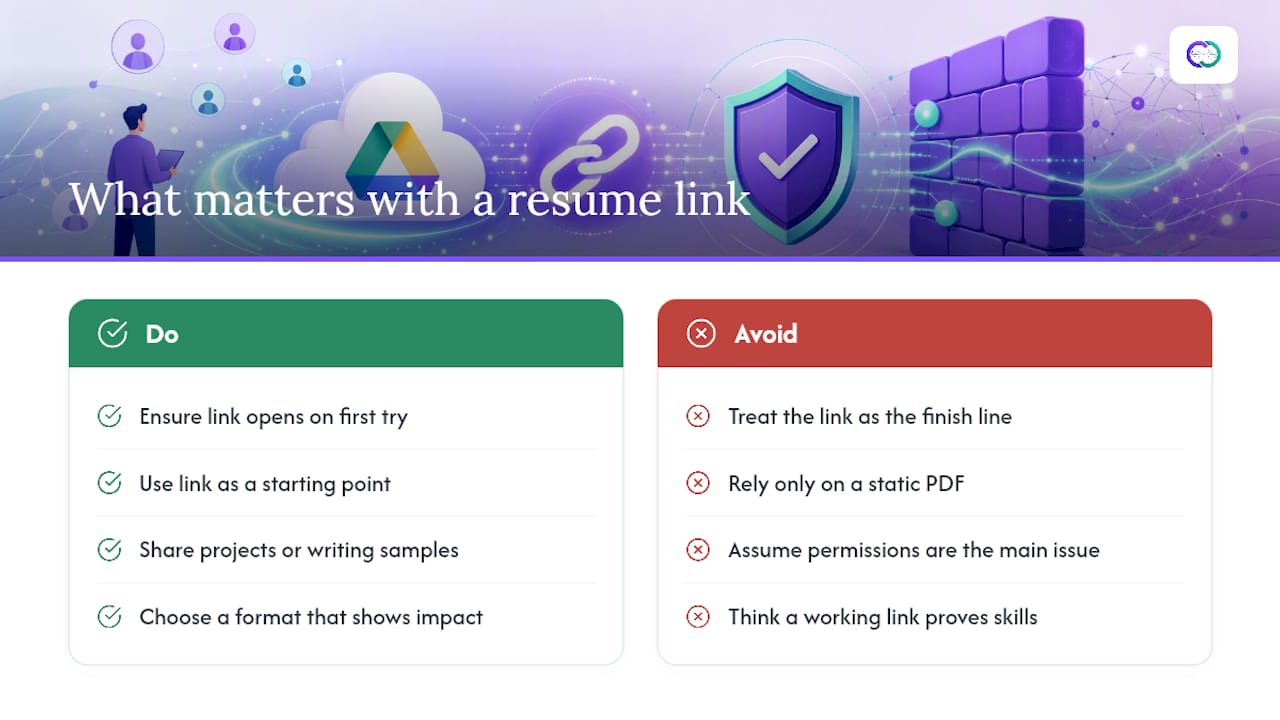
The conventional advice treats “get the link working” as the finish line. It’s really the minimum bar. A working link that opens on the first try earns you nothing beyond avoiding an unforced error. It doesn’t demonstrate anything; it just doesn’t get in the way.
Where we’d push back on standard guidance is the assumption that a resume link is the end state rather than a starting point. If you already have projects, writing samples, or client work sitting in Drive, the file permissions matter less than what happens once someone opens the file. A static PDF answers “what did you do.” It can’t answer “how did you do it” or “what was the actual impact,” which is usually the question a hiring manager is really asking. Get the link mechanics right first. Then think about whether a static file is really the best format for the story you’re trying to tell.
— Alloquy Team
When a Drive Link Isn’t Enough
A Google Drive link shows a recruiter what you did. It can’t answer the follow-up questions they’re actually thinking while reading it, like how a project got built or what happened after launch. Alloquy fills that gap by turning your verified Drive documents and work samples into an interactive profile with a custom AI assistant that recruiters can query directly for context, evidence, and specifics.
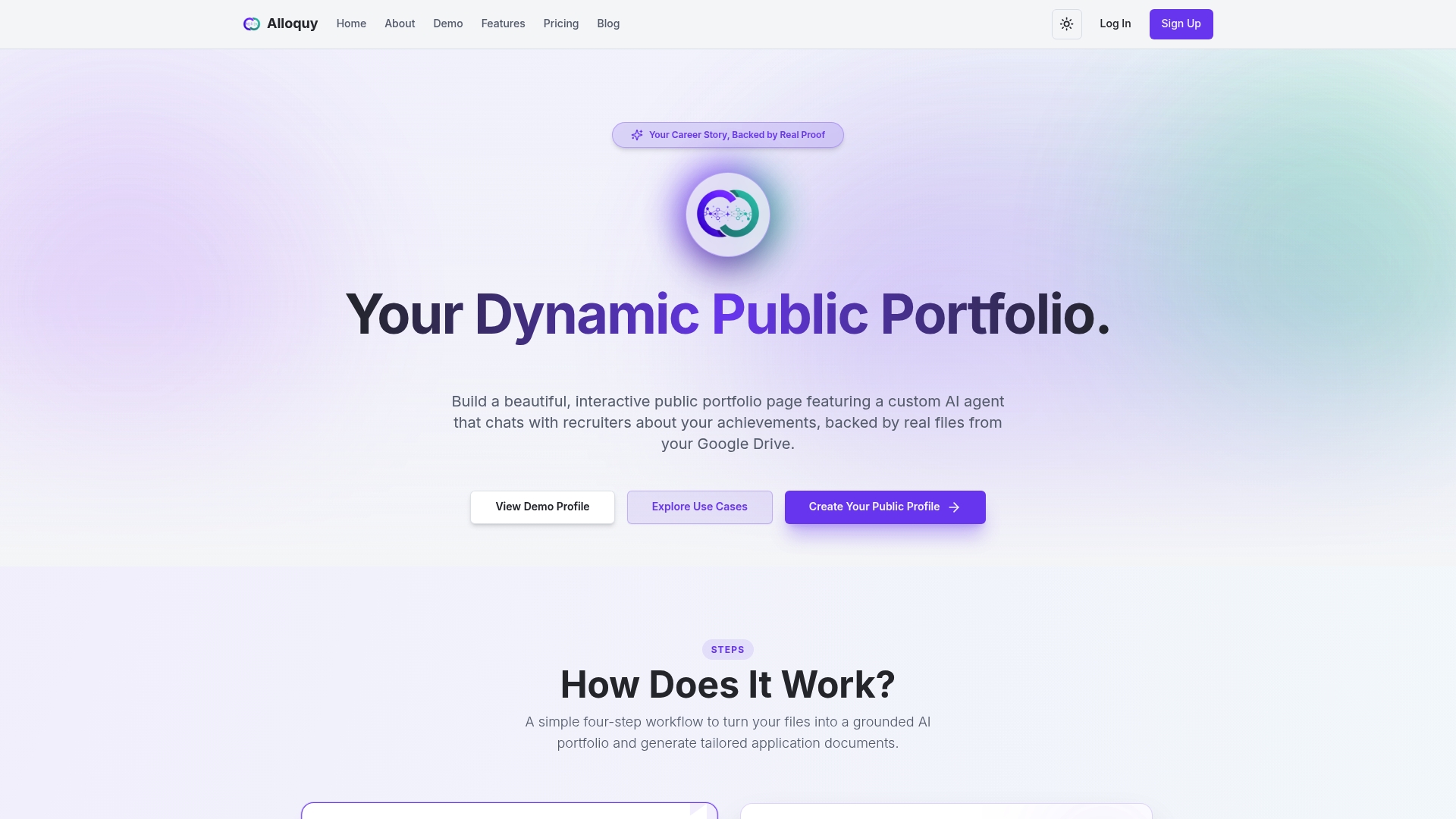
This solution fits best for professionals with projects, case studies, or client work worth exploring in depth, not just listing. You link the same Google Drive files you’d otherwise share as a static PDF, add context, and let recruiters ask questions instead of guessing. A plain PDF is still the right call for a quick, straightforward application where nothing beyond the basics is expected. But if you want your work to hold up under scrutiny rather than just get opened, check the features overview or compare pricing plans to see what an interactive profile adds on top of a resume link.
Sources
- Share files from Google Drive - Google Drive Help
- Recipients can’t access Google Drive links used for large attachments — causes and workarounds
FAQ
How Do I Get My Resume’s Google Drive URL?
Open the file, click Share, set general access to “Anyone with the link,” choose Viewer, then click Copy link. That URL is your shareable resume address.
Can I Create a Resume Directly in Google Drive?
Yes. Write it in Google Docs, which lives inside Drive automatically, then export a PDF copy for formal applications while keeping the Doc as your editable master version.
Why Can’t I Upload My Resume From Google Drive to a Job Application?
The most common causes are the file not being fully synced, an incorrect file format, or the application portal only accepting direct file uploads rather than links, as described in Google Drive help. Download the file locally as a PDF first, then upload it directly instead of linking to Drive.
How Do I Find My Resume’s Shareable URL if I Already Set Sharing?
Right-click the file in Drive, select Share or Get link, and click Copy link. If access was already configured, the correct URL copies immediately without needing to change any settings.
Is It Safe to Share a Resume Link With “Anyone With the Link” Access?
It’s a reasonable trade-off for a document meant to be seen, as long as you set the role to Viewer only and avoid including sensitive personal details beyond standard contact information.