
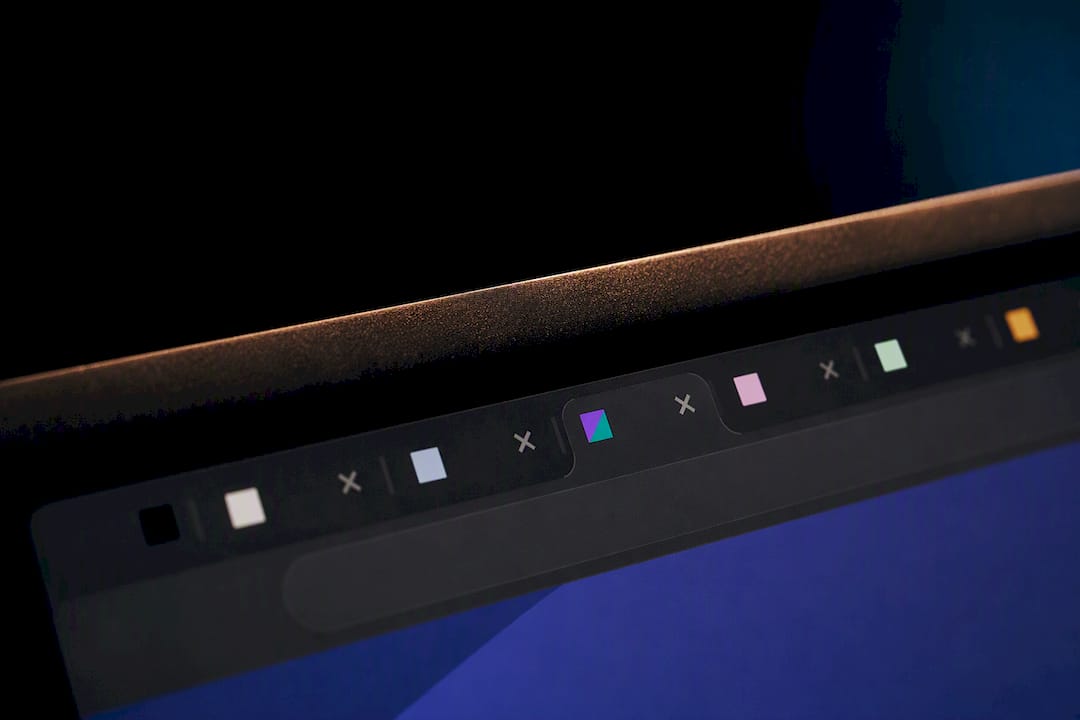
The minimal, modern favicon package for a portfolio is one SVG, one ICO fallback, and PNGs at 180×180 for Apple devices and 192/512 for Android and manifest files. Drop them in your site root or public/ folder, add the rel="icon" link tags (or use your builder’s favicon field), and version the filename when you update it so browsers actually fetch the new version instead of serving a cached one.
TL;DR:
- Most portfolio favicons can be effectively created with one SVG file, an ICO fallback, and two PNGs at 180×180 and 512×512 pixels to cover major devices and search appearance needs.
- It is best to design a favicon around a single, high-contrast element or monogram that remains recognizable when scaled down to 16 pixels, avoiding fine details or text.
- Favicons should be placed in the site root or public directory, with proper link tags added to HTML or uploaded through platform settings, then tested and refreshed to clear browser caches.
- Using version query strings or filenames when updating favicons prevents caching issues, ensuring browsers fetch the latest icon rather than serving outdated images.
- A well-chosen favicon helps your portfolio stand out in busy tabs or bookmarks and costs virtually nothing to implement properly.
Table of Contents
- What Files Do You Need for a Favicon for Portfolio Sites?
- Design Rules for Favicons That Work at Tiny Sizes
- Which Favicon Sizes and Formats Do You Actually Need?
- How Do You Add a Favicon to Your Portfolio Site?
- How Do You Test and Update a Favicon Without Breaking It?
- Alloquy Team Notes: Favicon Choices That Work for Portfolios
- A Few More Minutes, A More Finished Portfolio
- Sources
- FAQ
What Files Do You Need for a Favicon for Portfolio Sites?
A complete favicon for portfolio websites boils down to four files and a handful of HTML lines. Skip the legacy 14-icon kits that older tutorials still recommend. A minimal set covers nearly every browser, device, and search result context that matters in 2026.
Here’s the checklist:
- Export an SVG as your primary icon. It scales cleanly at any size and can adapt to dark mode automatically.
- Export an ICO at 16×16, 32×32, and 48×48 as a fallback, since some browsers and crawlers still request
/favicon.icodirectly. - Export two PNGs: one at 180×180 for Apple touch icons, one at 512×512 (and optionally 192×192) for Android and web app manifests.
- Place all files in your site root or
public/directory. - Add four link tags to your HTML
<head>, or upload the files through your builder’s favicon setting. - Test immediately by opening a private browser window and checking the tab, then force a refresh with
Ctrl+Shift+R(orCmd+Shift+Ron Mac) if the old icon still shows.
That’s the whole job. No design software subscription required, no guesswork about which of a dozen sizes you’re missing.
Design Rules for Favicons That Work at Tiny Sizes
A favicon is a stress test for your brand. If your mark only works at full size with your studio name spelled out underneath it, it will fail the moment it’s shrunk to 16 pixels in a browser tab. Design guidance from CreativeBloq is blunt about this: simple, high-contrast icons survive; text and fine detail do not.
For a portfolio, that means picking one recognizable element and building the favicon around it alone.
- Use a single element, not your full logotype. A monogram, an initial, or one symbol from your brand mark reads better than a compressed wordmark.
- Favor bold shapes and strong contrast. A thin outline that looks elegant at 200 pixels turns into a smudge at 16 pixels.
- Cut fine detail entirely. Gradients, thin serifs, and intricate line work disappear on a small canvas.
- Create two variants: a transparent-background version for browser tabs and a solid-fill version for home-screen tiles, where a transparent icon can look broken against a busy phone wallpaper.
If your current logo doesn’t reduce well, don’t force it. Many designers keep a full logotype for their site header and a stripped-down glyph reserved just for the favicon and social avatars. That split is common practice, not a compromise. For more on picking a motif that holds up across formats, see this breakdown of portfolio design inspiration.
Which Favicon Sizes and Formats Do You Actually Need?
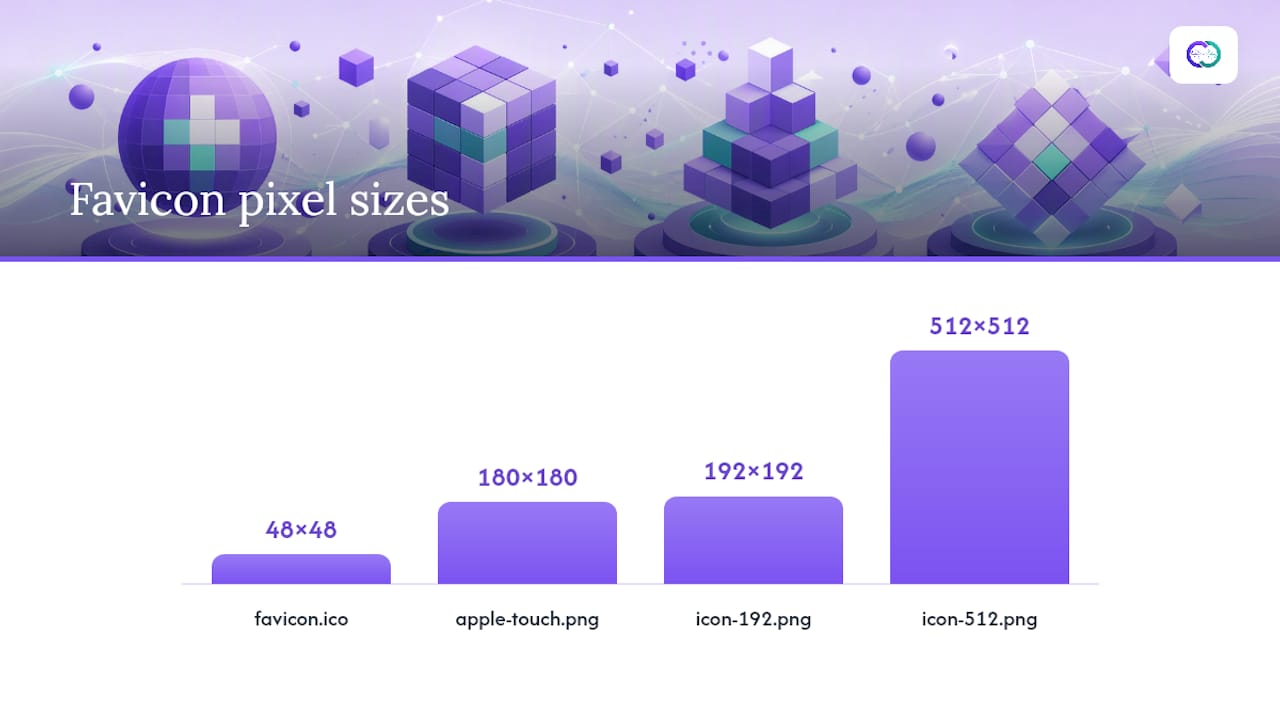
SVG is the primary format because it renders sharply at any resolution and can shift with a visitor’s dark mode setting, but you still need raster fallbacks. Some older browsers and search crawlers ignore SVG favicons entirely and request /favicon.ico by default, and mobile operating systems expect fixed-size PNGs for home-screen icons rather than vector files.
Google Search Central requires favicons to be square (a 1:1 ratio) and at least 8×8 pixels, though it recommends going larger than 48×48 for a cleaner appearance in search results. Google accepts BMP, GIF, ICO, PNG, JPEG, PPM, and TIFF formats.
| File | Size | Format | Used for |
|---|---|---|---|
| favicon.svg | Scalable | SVG | Primary icon, browser tabs, dark mode |
| favicon.ico | 16×16, 32×32, 48×48 | ICO | Legacy browser fallback, default crawler request |
| apple-touch-icon.png | 180×180 | PNG | iOS home screen, Safari bookmarks |
| icon-192.png | 192×192 | PNG | Android home screen, web app manifest |
| icon-512.png | 512×512 | PNG | Android splash screens, WordPress site icon |
This lines up with what most current favicon guides recommend: SVG plus ICO plus two or three PNGs, not the sprawling icon sets that older CMS themes used to require.
How Do You Add a Favicon to Your Portfolio Site?
Installation differs slightly by platform, but the underlying idea is always the same: put the files where the browser expects them, then point to them with the right tags or upload field.
-
Plain HTML sites. Place your files in the site root or
public/folder. In the<head>, add:<link rel="icon" type="image/svg+xml" href="/favicon.svg"><link rel="icon" type="image/x-icon" href="/favicon.ico"><link rel="apple-touch-icon" href="/apple-touch-icon.png">Keep/favicon.icoin the root even if you never reference it directly. Browsers and crawlers request that exact path by default. -
WordPress. Go to Appearance → Customize → Site Identity (or Settings → General on newer versions) and upload your site icon. WordPress requires a minimum of 512×512 pixels for this upload, and it automatically generates the smaller sizes it needs.
-
Shopify. Navigate to Online Store → Themes → Customize → Theme settings → Favicon. Upload a PNG at 32×32 pixels or larger; Shopify resizes it automatically for different contexts.
-
Squarespace. Go to Design → Browser Icon and upload a square PNG or ICO file. Squarespace doesn’t support SVG uploads in every version of this field, so keep a PNG on hand even if SVG is your primary format elsewhere.
-
Next.js or static site generators. Drop your files into the
public/folder. In the App Router, export ametadataobject with aniconsfield pointing to your files, or add manual<link>tags inside a<Head>component for older setups.
Every platform ultimately does the same thing: serve a small, square image file from a predictable URL.
How Do You Test and Update a Favicon Without Breaking It?
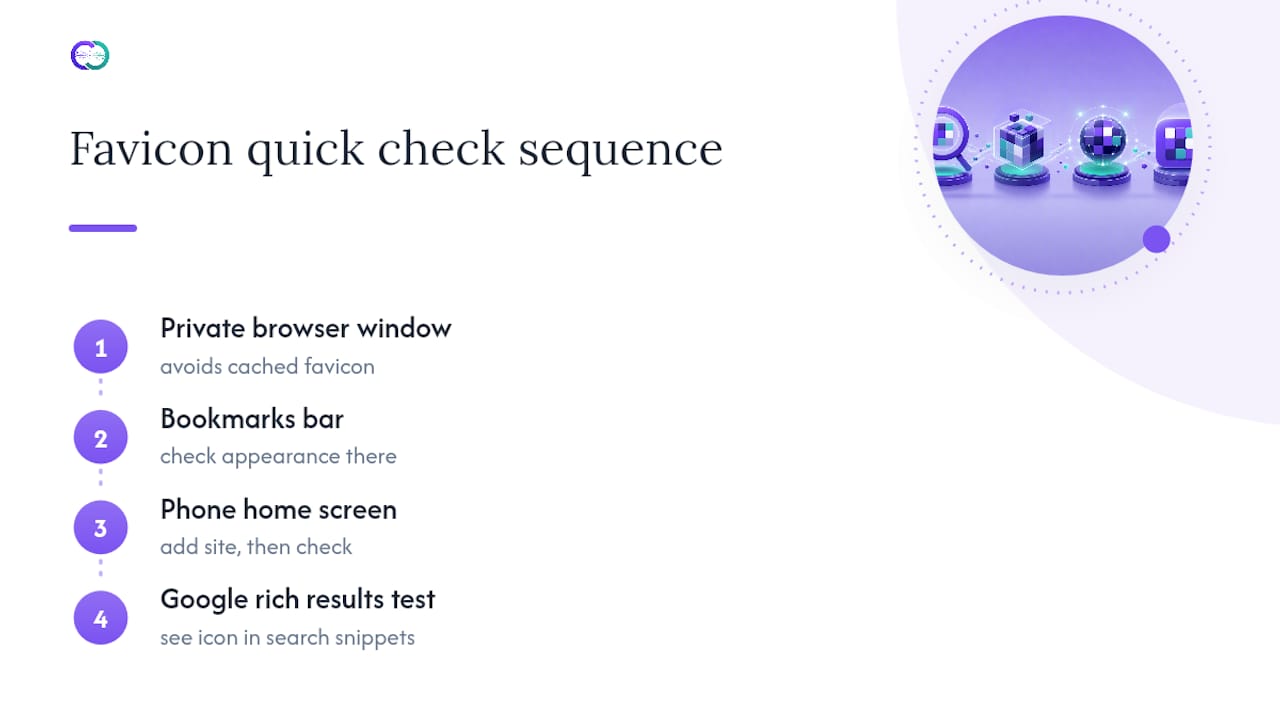
Check your work in a private browser window first, since regular windows often serve a cached favicon even after you’ve replaced the file. Then check your bookmarks bar, your phone’s home screen after adding the site, and Google’s rich results test to see how the icon appears in search snippets.
When you update the design later, don’t just overwrite the file at the same URL and expect an instant refresh. Browsers cache favicons aggressively, sometimes for weeks. The safer approach is a version query string, like favicon.svg?v=2, which forces browsers to fetch the new file while keeping the base URL stable for Google Search. Changing the filename entirely works too, but it risks leaving a stale reference somewhere in your code if you forget to update every link tag.
Pro Tip: If your favicon shows correctly in an incognito window but not your regular browser, it’s almost always a caching issue, not a code problem. Clear the cache before you start debugging your HTML.
Common failure points: a typo in the file path, a favicon blocked by a robots rule that also blocks your image directory, or an ICO file saved with the wrong internal format despite the correct extension.
Alloquy Team Notes: Favicon Choices That Work for Portfolios
Recruiters skim. They open a dozen browser tabs while reviewing candidates, and a generic gray globe icon or a broken image placeholder does nothing to help your portfolio stand out in that lineup. A distinct favicon is a small piece of visual memory that makes your tab findable again ten minutes later.
For designers and artists, the choice usually comes down to one of three approaches:
- An initial or monogram, which works well if your personal brand already leans on typography.
- A standalone symbol, pulled from a larger logomark, if your visual identity has a distinct icon that reads on its own.
- A cropped detail from a signature piece of work, useful for artists whose portfolio is built around a recognizable visual style rather than a formal logo.
Whichever route you pick, test it against the same busy-tab scenario a recruiter will actually encounter. For more on translating a personal brand into a compact, coherent visual system, see these developer portfolio examples and this breakdown of custom portfolio sections that tend to catch a hiring manager’s eye.
A Few More Minutes, A More Finished Portfolio
A favicon is a small detail, but small details are exactly what separate a portfolio that feels finished from one that feels abandoned halfway through. It costs almost nothing to add, and it’s one of the few branding touches a recruiter notices before they’ve read a single word of your work.
Run the checklist above, upload the files, and check the result on your phone before you call the job done. If you’re weighing what to prioritize next on your portfolio’s visual polish, a good one-page portfolio template is worth studying for how much restraint can carry a design.
— Alloquy Team
Sources
- Define Website Favicon for Search Results | Google Search Central | Documentation | Google for Developers
- How to Add a Favicon to Any Website — HTML, WordPress, Shopify (2026)
- How to design the perfect favicon — CreativeBloq
- The Complete Favicon Guide: Sizes, Formats & Best Practices | Launch Vault
- What is a favicon? — Shopify blog
FAQ
How Do I Create a Favicon?
Design a simple, high-contrast icon based on one element of your brand, export it as an SVG plus PNG fallbacks at 180×180 and 512×512, and an ICO for legacy support. Many free favicon generator tools will convert a single image into the full set automatically.
Are Favicons Still Used?
Yes. Browsers still display them in tabs and bookmarks, mobile devices use them for home-screen icons, and Google Search displays them next to search results when they meet its size and format requirements.
Can You Give Me an Example of a Favicon for Branding?
A designer might use a single letter from their name in their brand’s signature color, while an illustrator might crop a small recognizable motif from their artwork. Both work because they reduce cleanly to a bold shape at 16 pixels.
Where Can I Get a Free Favicon Design Tool?
Several free favicon generator tools convert an uploaded logo or image into a complete set of sizes and formats, including SVG, ICO, and the PNG variants needed for Apple and Android devices. Most platform builders, including WordPress and Shopify, also include a built in upload field that handles resizing for you.