

For file and folder level changes, use the Share dialog and set access to Viewer or Commenter by default, never “Anyone with the link” unless the content truly needs public reach. For organization wide rules, the Admin console governs external sharing through allowlisted domains and trust rules. When you need tighter scope than a role can offer, use limited access folders or expiration dates instead of relying on link settings alone.
TL;DR:
- Restrict file sharing to specific people or organization members, avoiding the use of “Anyone with the link” unless public access is truly necessary.
- Be aware that removing a user from a folder doesn’t automatically revoke their direct permissions on individual files unless those are managed with limited access folders.
- Administrative settings can impose organizational-wide restrictions that prevent external sharing or require allowlisting, which must be configured for external collaboration.
- Expiration dates can limit access for temporary roles like contractors, but only for viewers or commenters, not editors.
- Ownership control remains critical, as only owners can permanently delete files, transfer ownership, or override folder settings, preventing sensitive files from being accidentally exposed.
Table of Contents
- How to Change Google Drive Sharing Settings for Files and Folders
- How to Stop, Change, or Limit Sharing on a Drive File
- Why Removing a Parent Permission Doesn’t Always Revoke Access
- Admin Console Controls for External Sharing and Trust Rules
- A Security Checklist for Individuals and Admins
- Why Drive Won’t Let You Share, and How to Fix It
- Alloquy Perspective: Why Sharing Settings Determine Evidence Integrity
- A Simpler Way to Publish Drive Evidence Without Manual Sharing Upkeep
- Sources
- FAQ
How to Change Google Drive Sharing Settings for Files and Folders
Every sharing decision in Drive starts in the same place: select the file or folder, click Share, then choose who gets in and what they can do once they’re there. The mechanics are simple, but the choices you make inside that dialog determine whether a document stays under your control or drifts into unmanaged exposure.
The process runs in four steps. Right click the item (or open it and click the Share button), enter specific email addresses or a Google Group, assign a role, then click Send or Share to confirm. That’s the entire workflow for direct, named sharing.
General access is the second lever, and it’s the one people misuse most often. Drive gives you three practical choices:
- Restricted — only the people you explicitly add can open the item. This is the correct default for anything sensitive.
- Anyone with the link — no login required, and if link discoverability is enabled through the
allowFileDiscoveryfield, the item can even surface in search results within your domain. - Domain-limited access — available on Google Workspace accounts, this opens the file to anyone inside your organization without individual invites.
Roles determine what each person can actually do once they have access. A Viewer can read or download but never edit. A Commenter can leave suggestions without touching the underlying content. An Editor can change the file, and, depending on folder settings, may be able to re-share it with others. The Owner holds full control, including the power to delete the item or transfer ownership entirely. According to Google’s own documentation on the share dialog and role capabilities, items placed inside a shared folder inherit that folder’s roles automatically, which is convenient until it isn’t.
On mobile, the same controls exist under the three dot menu next to any file, though the general access options appear one tap deeper than on desktop. The role names and their permissions don’t change across platforms, so a Commenter on your phone has exactly the same limits as a Commenter in a browser.
How to Stop, Change, or Limit Sharing on a Drive File
Removing access or tightening a link isn’t always as final as it feels, and understanding the mechanics prevents a nasty surprise later.
- Remove or downgrade a specific person. Open the Share dialog, find their name in the “People with access” list, and either change their role or select Remove access. This takes effect immediately for that individual.
- Set an expiration date. You can assign an expiration to Viewer or Commenter access, useful for a contractor review window or a time boxed audit. Google’s guidance on stopping, limiting, or changing sharing notes that expiration dates can’t currently be applied to Editor roles, and only the file owner or someone with equivalent rights can set them.
- Tighten general access on a link. If you switch an item from “Anyone with the link” to “Restricted,” anyone who already opened that link loses access the moment you save the change. There’s no grace period.
- Understand
writersCanShare. This is the setting, described in Drive’s developer permissions documentation, that decides whether Editors can re-share a file with new people. When it’s set to false, only the owner controls the invite list, which matters a great deal if you’ve handed edit rights to a large team.
There’s a subtlety here that trips up a lot of people: an Editor is not the same as an Owner, even though both can modify content. Only the owner can permanently delete the file, transfer ownership, or override sharing restrictions set at the folder level. If you’re managing sensitive material, know exactly who holds ownership, not just who can edit.
Why Removing a Parent Permission Doesn’t Always Revoke Access
Permission inheritance is one of the most misunderstood mechanics in Drive, and it causes real security gaps when people assume it works like a simple hierarchy.
Files inside a shared folder normally inherit that folder’s permissions, so adding someone to the parent folder gives them access to everything inside it. The complication comes when a file also has a direct permission, meaning someone was individually added to that specific file at some point, separate from the folder. If you later remove that person from the parent folder, the direct permission on the child file can survive untouched. Institutional IT documentation on folder ownership and permissions in Drive confirms this exception, and it’s exactly why “I removed them from the folder” doesn’t guarantee “I removed their access.”
Drive’s answer to this is the limited access folder. When you configure a subfolder this way, people who can see the parent folder’s metadata still cannot open the restricted contents, effectively breaking inheritance on purpose. It’s the closest thing Drive offers to a walled compartment inside a shared space, and Google’s own limited access documentation describes exactly how the visibility split works.
A few habits keep this from becoming a problem:
- Audit files inside sensitive folders for direct permissions that don’t match the folder’s current sharing list.
- When access needs to shrink, move the file into a new folder you own rather than trying to strip permissions on the child alone. Google’s guidance on limited access folders notes that reducing access on a child item you don’t fully control can instead trigger a change to the parent’s permissions, the opposite of what you wanted.
- Recreate high sensitivity documents in a fresh, correctly scoped folder rather than patching an old one with a messy sharing history.
Pro Tip: *Structure your Drive folders by sensitivity level before you ever share them.
Admin Console Controls for External Sharing and Trust Rules
Individual sharing settings only go so far. Once a document leaves the boundaries of your organization, control shifts to whoever manages your Google Workspace Admin console.
Inside Apps > Google Workspace > Drive and Docs > Sharing settings, admins choose one of three postures for external sharing:
- Off — no one in the organization can share outside the domain, period.
- Allowlisted domains — external sharing works only with specific partner domains you’ve approved in advance.
- On — any user can share with anyone outside the organization, the least restrictive setting.
Allowlisting is the practical middle ground most organizations land on. It lets a marketing team collaborate with an outside agency, for example, without opening the door to every domain on the internet. Admins can also enable visitor sharing, which grants temporary, verified access to external users who don’t have a Google account at all, useful for contractors or clients who work in Outlook or another system entirely.
For anything more nuanced than a single on/off toggle, trust rules give administrators granular conditions based on domain, group, or organizational unit, rather than one blanket policy for the entire company. One guide to workspace admin settings notes that trust rules are the recommended path once collaboration scenarios get complex enough that a single external sharing toggle stops making sense.
Here’s the number that should change how you think about defaults: security audits consistently flag overly permissive external sharing as one of the most common Drive misconfigurations found in Workspace environments, usually traced back to link sharing defaults that were never tightened after account setup.
Tightening these settings doesn’t retroactively delete files that are already shared, but it does block new external shares and can trigger warning prompts on existing ones, depending on how strictly the policy is enforced.
A Security Checklist for Individuals and Admins
Good Drive hygiene isn’t complicated, but it does require doing a handful of things consistently rather than occasionally.
- Default to least privilege. Set your personal Access Checker default to “recipients only” rather than link-based sharing, so every new file starts locked down instead of open.
- Use expirations for anything temporary. A freelancer, an intern, or an external reviewer should get a Viewer role with an end date, not indefinite access you’ll forget to revoke.
- Build limited access folders for sensitive work. Financial records, legal drafts, and unreleased product material belong in a folder that breaks inheritance deliberately.
- Turn on out-of-domain warnings. These prompts catch the accidental share to a personal Gmail address before it happens, not after.
- Maintain a domain allowlist for regular partners. This keeps essential collaboration open while reducing exposure to unknown domains.
- Run periodic audits. Pull a shared-with-external report, review Drive activity logs, and check shared drive membership on a set schedule rather than waiting for a problem to surface.
Pro Tip: Calendar a recurring 15 minute Drive audit every quarter. Most exposure isn’t caused by a single bad decision. It accumulates quietly from files shared once, forgotten, and never revisited.
Why Drive Won’t Let You Share, and How to Fix It
Sharing failures almost always trace back to one of a handful of causes, and most are fixable in under a minute once you know where to look.
- External sharing is off at the organization level. If your admin has set sharing to “Off” or restricted it to an allowlist that doesn’t include the recipient’s domain, your Share button will either fail silently or throw an explicit warning.
writersCanShareis set to false. If you’re an Editor but can’t invite new people, someone above you has locked re-sharing to the owner only.- You don’t hold owner, writer, or organizer rights on the item. Commenters and Viewers simply cannot open the Share dialog to add others, by design.
- You’re sharing to a group that includes external members. Even if you meant to share internally, a Google Group with outside members can quietly extend access beyond your intended circle.
A related worry people raise constantly: does sharing one file expose everything else in your Drive? It doesn’t. Access is scoped to the specific item and, if applicable, its parent folder, not your entire account. The confusion usually comes from group membership, where someone assumes a shared folder link exposes unrelated files, or from link discoverability settings that make a file appear in internal search results without actually granting broader Drive access.
To see exactly who has access to something, open the Share dialog and check the “People with access” panel, or, at the admin level, pull a sharing report from the console. If you’ve lost the ability to manage sharing on a file you need, the cleanest fix is moving it into a folder you own, requesting an ownership transfer, or asking your admin to check the relevant trust rule.
Alloquy Perspective: Why Sharing Settings Determine Evidence Integrity
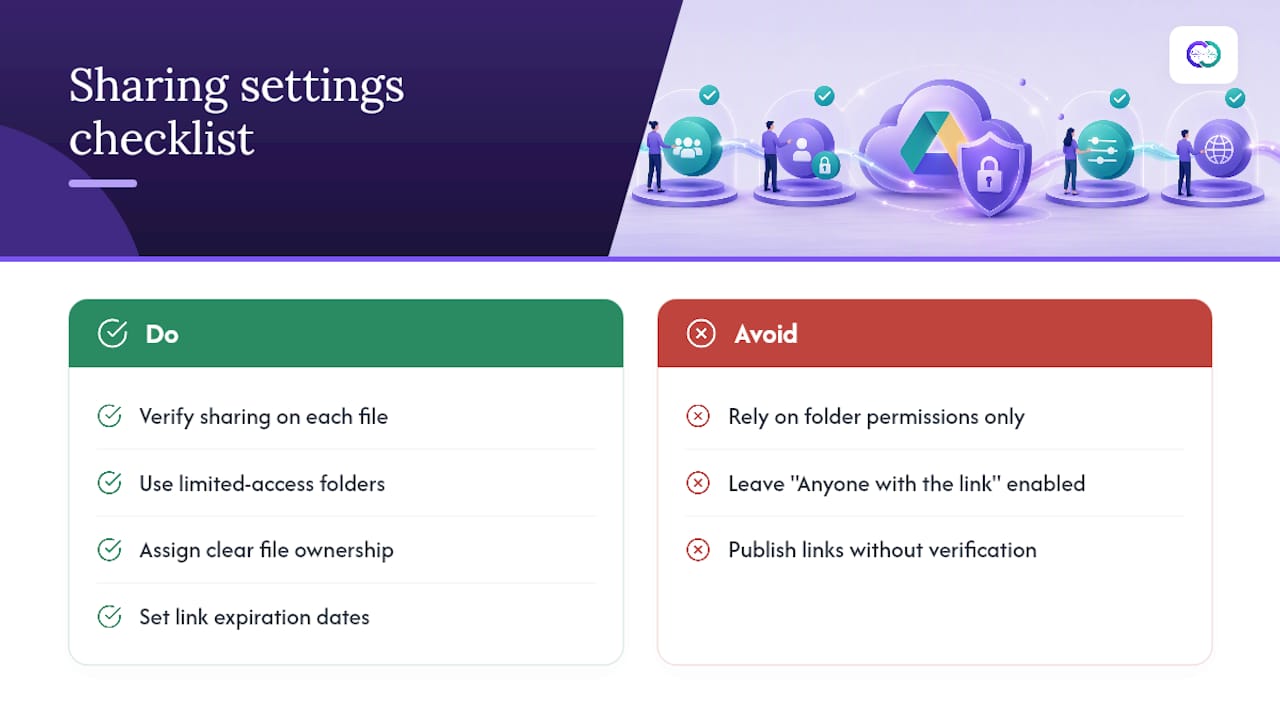
Drive sharing settings carry different stakes once a document becomes evidence in a public facing recruiter profile. A file left on “Anyone with the link” can be edited, moved, or deleted by someone you never intended to grant access to, silently breaking the citation a recruiter relied on days earlier.
Limited access folders, clear ownership, and expiration dates aren’t just security hygiene here. They preserve the chain of custody behind a verified claim. Before publishing any Drive-linked evidence, verify the sharing setting on that specific file, not just the folder it lives in. Alloquy’s own checklist for preparing Drive documents before publishing covers this verification step directly.
— Alloquy Team
A Simpler Way to Publish Drive Evidence Without Manual Sharing Upkeep
Manually policing sharing settings across dozens of linked documents doesn’t scale, especially once a portfolio grows past a handful of case studies. The platform links Google Drive documents into one controlled public profile, allowing recruiters to query verified evidence through an AI assistant instead of clicking through a scattered set of links with inconsistent permissions.
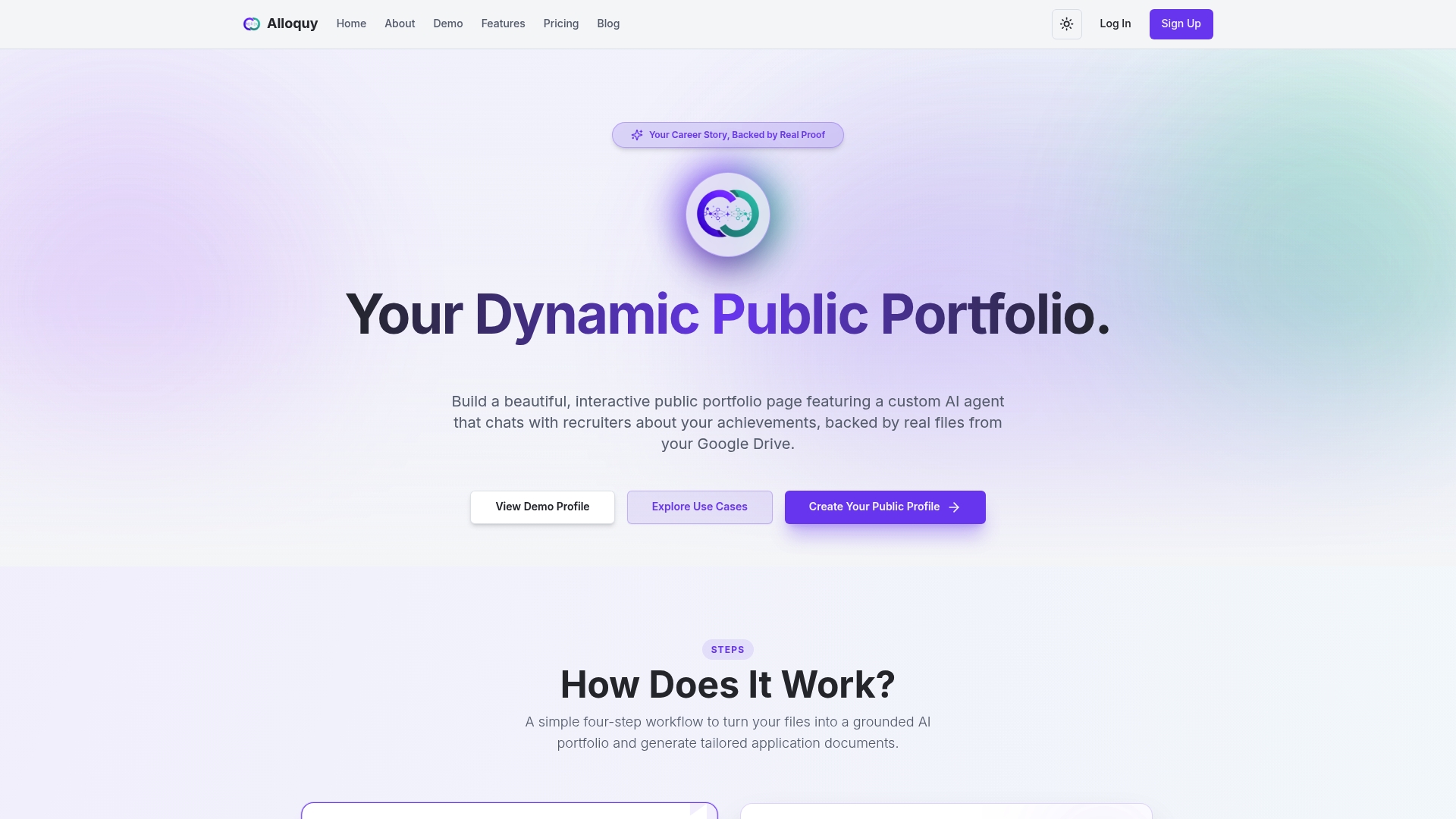
The platform handles evidence management, recruiter facing Q&A, and templated resume generation from the same verified source material, which means access rules do not need to be rebuilt every time a document changes. For teams thinking about shared asset consistency more broadly, a resource like AmmarAI’s team workspace guidance covers related collaboration patterns worth knowing.
If you’re ready to stop tracking sharing settings file by file, check the Alloquy pricing page to see which plan fits your evidence volume, and start building a profile that keeps your work verifiable without the manual upkeep.
Sources
- Share folders in Google Drive
- Stop, limit, or change sharing
- Share files, folders, and drives | Google Drive
FAQ
Why Is Google Drive Not Letting Me Share a File?
The most common causes are an organization-wide external sharing restriction set by your admin, a writersCanShare setting that limits re-sharing to the owner, or simply not holding owner, writer, or organizer rights on the item.
Can I Give Someone Access to My Entire Google Drive?
No, Drive doesn’t offer a single toggle for account-wide access. You share individual files, folders, or shared drives, and permissions apply only to the specific item and its contents.
If I Share One File, Can People See My Other Files in Google Drive?
No. Sharing scope is limited to the item you shared and anything nested beneath it if it’s a folder, not your broader Drive account.
What Are the Three Types of Sharing Permissions in Google Drive?
The core roles are Viewer, Commenter, and Editor, each granting progressively more control, with Owner sitting above all three as the role that governs deletion and permission changes.