

A portfolio QR code works when it points to a mobile-first destination you control, uses a dynamic redirect so you can update the URL without reprinting, and has been scan-tested on both iOS and Android before it goes live. Three non-negotiable elements: a fast-loading mobile page (under three seconds), a short or custom URL that signals credibility and a fallback destination if the primary link ever breaks. Add a one-line CTA near the code, such as “Scan to view my work,” and you have the foundation.
- Mobile-first destination: the page must render cleanly on a 375px viewport before anything else.
- Dynamic or redirect-controlled QR: lets you swap the destination without regenerating the code or reprinting the asset.
- Scan test on real devices: run the code through at least two native camera apps before distributing.
- Short/custom URL fallback: print the URL in small type beneath the QR so users who cannot scan still reach your work.
- Clear CTA: one line of micro-copy that tells the viewer exactly what they will see.
Key Takeaways
A portfolio QR code converts scans into recruiter engagement only when the destination is mobile-first, evidence-backed, and reachable through a redirect you control.
| Point | Details |
|---|---|
| Use a dynamic or redirect-controlled QR | Update your destination without reprinting; critical for resumes and long-lived print assets. |
| Match destination to context | Link resumes to case studies, business cards to a portfolio homepage, and proposals to relevant credentials. |
| Export SVG/PDF for print, 300 DPI PNG for digital | Supplying the wrong format is the most common cause of blurry, unscannable codes in production. |
| Test on iOS and Android before distributing | Scan failures at distribution are unrecoverable on static codes; catch them before the asset goes live. |
| Alloquy provides the mobile-first, AI-powered destination | Verified evidence, recruiter AI Q&A, and branding controls make Alloquy a strong QR landing target. |
Table of Contents
- How do you create a portfolio QR code step by step?
- Which portfolio destination should your QR code link to?
- Static vs. dynamic QR codes: which should you pick?
- How do you make a portfolio QR code scannable and on-brand?
- What file formats and print specs should you export?
- Where should you place your portfolio QR code?
- How do you track QR scans and measure success?
- Privacy, accessibility, and testing checklist
- Common QR code failures and how to fix them
- What does research say about portfolios and QR-driven access?
- Why interactive, evidence-backed portfolios change the QR equation
- Alloquy pairs interactive portfolio profiles with portfolio QR codes
- Sources
- FAQ
How do you create a portfolio QR code step by step?
Follow these six steps to produce a tested, deployment-ready code.
- Choose your destination. Decide whether the QR points to a portfolio homepage, a single case study, a curated PDF, or an interactive profile. The destination should match the context: a resume QR goes to a recruiter-ready overview; a conference badge QR goes to a project highlight.
- Create or shorten the URL. Use a short domain you control (e.g., via Bitly, a custom domain redirect, or your own subdomain) rather than a raw long URL. A controlled redirect means you can update the destination later without regenerating the code.
- Choose static vs. dynamic. For resumes, business cards, and any long-lived print asset, use a dynamic QR or a redirect-controlled static QR. For one-off handouts with a lifespan under two weeks, a plain static code is fine.
- Generate the code. Tools like Canva’s QR code generator and Adobe Express both support branding, logo insertion, and multi-format exports. Paste your short URL, apply brand colors, and add a subtle logo if desired.
- Style and export. Download SVG or PDF for print and a 300 DPI PNG for digital. Confirm the quiet zone (the white border around the code) is at least four modules wide on all sides.
- Test and deploy. Scan the exported file at its intended print size on an iPhone and an Android device. Confirm the destination loads in under three seconds on a mobile connection, then place the code on your resume, card, or print asset.
Pro Tip: Set up a redirect at a domain you own (e.g., yourname.com/work) and point your QR to that redirect rather than directly to your portfolio URL. If you ever migrate platforms or change your portfolio address, update the redirect once and every printed asset stays current.
Which portfolio destination should your QR code link to?
Matching the destination to the viewer’s context is what separates a QR code that converts to a conversation from one that gets ignored. The format of the landing experience matters as much as the quality of the work it contains.
- Portfolio homepage: best for networking contexts and business cards where the viewer wants to browse freely. Works well when you update work regularly.
- Single project or case study: strongest for role-specific applications. Link a UX designer’s resume QR to the one case study most relevant to the job description.
- Curated PDF: gives you a controlled narrative sequence, useful for interview packets and proposals. Confirm the PDF opens in a mobile viewer without requiring a download.
- Video intro (60–90 seconds): high-touch roles in sales, consulting, or media benefit from a brief recorded introduction. Host on a page you control, not directly on a video platform, so you can add context around it.
- LinkedIn or professional profile: familiar to recruiters and low-friction, but offers less differentiation. Reserve for casual networking or conference badges where brevity matters.
For a resume, link to a curated project page or interactive profile rather than a generic homepage. For a business card, the homepage or a “start here” landing page works well. For a gallery label or exhibit, a single-project page with high-resolution images and a brief process description is the clearest choice.
Professionals who want to combine multi-format assets effectively should keep an ATS-friendly resume copy separate from the interactive destination the QR points to.
Static vs. dynamic QR codes: which should you pick?
A static QR code encodes the destination URL directly into the code’s pixel pattern. Change the URL and you must generate a new code, which means reprinting every asset that carries it. A dynamic QR code stores a short redirect URL in the pattern; the actual destination lives on a server you control and can be updated at any time without touching the printed code.
For most professionals, dynamic is the correct default:
- Resumes and business cards are reprinted infrequently. A dynamic code protects against portfolio migrations, platform changes, or URL restructuring.
- Long-lived print assets (conference materials, exhibit labels, proposal covers) justify the minor cost of a dynamic QR service because a broken link on a printed piece cannot be fixed without reprinting.
- Analytics: dynamic codes provide scan counts, device types, and geographic data. Static codes provide none.
- URL control: a redirect domain you own gives you the same updateability as a paid dynamic service, at the cost of slightly more setup.
Static codes are acceptable for one-off handouts, short-lived event flyers, or any print run with a lifespan under two weeks where analytics are not needed and reprinting is cheap.
How do you make a portfolio QR code scannable and on-brand?
Scan reliability and brand consistency pull in opposite directions only when styling is applied carelessly. The technical floor is non-negotiable: high contrast between the code modules and the background, a quiet zone of at least four modules on every side, and no logo or graphic covering more than roughly 30% of the code’s surface area.
- Contrast: dark modules on a light background is the safest configuration. Avoid placing the code on a textured or photographic background.
- Color: brand colors are fine for the modules, but the background must remain light and uncluttered. Run a contrast check using WCAG AA standards (minimum 4.5:1 ratio for small elements).
- Logo placement: center a small logo in the finder pattern area only. A logo that bleeds into the data modules will cause scan failures on older camera apps.
- Minimum size: 1 inch × 1 inch (approximately 2.5 cm × 2.5 cm) for business cards; 1.5 inches × 1.5 inches for resumes. Posters can go larger, but never smaller than 1 inch at the intended print size.
- Frame and micro-copy: add a one-line CTA in a frame around the code (“Scan to view my portfolio”) to increase scan rates. Bitly’s guidance specifically recommends this framing for resume and business card placements.
- Accessibility: print the short URL in 8pt type beneath the code as a fallback for users who cannot or will not scan.
Both Canva and Adobe Express support color customization and logo insertion while surfacing contrast warnings, making them practical starting points for branded codes.
Pro Tip: Always generate both a vector export (SVG or PDF) and a high-resolution raster export (PNG at 300 DPI or higher). Give the vector to any designer working on print layouts and use the PNG for digital placements. Scaling a raster QR code up from a low-resolution export is one of the most common causes of blurry, unscannable codes in print production.
What file formats and print specs should you export?
Print production and digital use require different file types, and supplying the wrong one is a common source of blurry or unscannable codes.
Format decision:
- SVG or PDF (vector): resolution-independent; scales to any size without quality loss. Use for professional print production, large-format output, and any layout where a designer will resize the asset.
- PNG at 300 DPI: the standard raster format for most print-on-demand services, resume PDFs, and digital documents. Never use JPEG for QR codes; JPEG compression introduces artifacts that degrade module edges.
Print production checklist:
- Export at 300 DPI minimum; 600 DPI for small codes under 1.5 inches.
- Confirm the quiet zone is intact after placing the code in a layout (some design tools crop it).
- Set the background to white or a very light solid color, not transparent, to prevent bleed-through from underlying artwork.
- Proof at 100% print size: print a physical copy and scan it before approving the final file.
- For bleed-heavy designs, keep the QR code at least 3mm inside the trim line.
Supply both a vector and a 300 DPI PNG to any printer or designer handling your materials. That single habit eliminates the most common print-production failure mode.
Where should you place your portfolio QR code?
Placement determines whether the code reaches a viewer at the moment of genuine interest. The highest-converting placements are those where the viewer already has a reason to want more information.
- Resume header or footer: position near your contact details. CTA: “Scan to view my full portfolio.” Employers are more likely to open a portfolio when the URL or QR is included directly in recruitment materials.
- Business card (back face): pair with a one-line descriptor of what scans will reveal. CTA: “Scan to see selected projects.”
- Conference badge or lanyard insert: keep the CTA short. CTA: “Scan for my work.”
- Slide deck (final slide): place in the lower-right corner with contact details. CTA: “Scan to explore the full case study.”
- Exhibit or gallery label: link to a single-project page with process documentation. CTA: “Scan for process and materials.”
- Email signature: use a small inline image linked to the portfolio URL; include the short URL as text for plain-text email clients.
- Proposal cover page: link to the most relevant case study or credentials page. CTA: “Scan to view related work.”
Pair every QR code with a one-line descriptor of what the scan reveals. “Scan to view my portfolio” is adequate; “Scan to see the UX case study for this project” is more specific and converts better in role-specific contexts. Practical placement examples across business cards, exhibit labels, and proposals consistently show higher follow-up engagement when the CTA is context-specific rather than generic.
How do you track QR scans and measure success?
Tracking requires two components working together: a dynamic QR or redirect domain that logs scan events, and UTM parameters appended to the destination URL so your analytics platform can attribute sessions correctly.
Setup sequence:
- Create a redirect at a domain you control (e.g., yourname.com/resume) or use a dynamic QR service.
- Append UTM parameters to the destination URL:
utm_source=resume&utm_medium=qr&utm_campaign=job-search-2026. - Confirm the redirect passes UTM parameters through to the destination (some redirect services strip query strings by default).
- Connect the destination to Google Analytics 4 or an equivalent platform.
- Define conversion events: contact form submission, PDF download, video play, or time-on-page threshold (90 seconds is a reasonable proxy for genuine engagement).
Metrics to monitor:
- Scan-to-page-load rate: the ratio of QR scans to actual page sessions. A large gap indicates a redirect failure or slow load time.
- Bounce rate and time on page: high bounce with low time on page suggests the landing experience does not match the CTA’s promise.
- Conversion rate: contact form submits or downloads divided by total sessions.
- Device breakdown: confirms the mobile experience is working as intended.
For professionals tracking how automated recruiter systems evaluate candidates, clean UTM attribution also helps correlate QR-driven traffic with downstream application outcomes.
Privacy, accessibility, and testing checklist
Testing checklist:
- Scan on a current iPhone (native camera app) and a current Android device (Google Lens and native camera).
- Test on a slow mobile connection (throttle to 3G in browser dev tools if testing a web destination).
- Confirm PDFs open in a mobile viewer without requiring a third-party app download.
- Verify the fallback short URL resolves correctly in a browser.
- Test the redirect chain end-to-end: QR → short URL → redirect → destination.
Privacy considerations:
- Avoid linking to documents shared with “anyone with the link” from a personal cloud drive unless the content is genuinely public-facing. For verified, controlled sharing of sensitive work samples, review evidence-sharing best practices before publishing.
- Use authenticated sharing links only when the audience is known and limited (e.g., a specific recruiter panel).
- Prefer a curated public page over a raw cloud folder for broad distribution.
Accessibility:
- Include descriptive alt text for all images on the landing page.
- Use a minimum 16px body font and sufficient heading hierarchy (H1 → H2 → H3) on the destination page.
- Print the short URL in legible type beneath the QR code on every physical asset.
Common QR code failures and how to fix them
Most scan failures trace to one of five root causes, each with a direct fix.
- Low contrast: the code modules are too close in value to the background. Fix: regenerate with dark modules on a white or very light background.
- Too small in print: the code was placed at under 1 inch at final print size. Fix: resize to at least 1 inch × 1 inch and re-export at 300 DPI.
- Low-DPI raster export: a PNG exported at 72 DPI was scaled up in a layout. Fix: re-export at 300 DPI minimum, or switch to SVG.
- Broken redirect: the short URL or redirect domain expired or was misconfigured. Fix: test the full redirect chain in a browser, update the redirect target, and confirm the QR still resolves.
- Expired short link: free-tier short link services sometimes expire links after inactivity. Fix: use a paid service or a self-hosted redirect on a domain you control; dynamic QR codes from reputable generators do not expire.
- Heavy logo overlay: a logo covering more than 30% of the code’s surface breaks error-correction capacity. Fix: reduce the logo to under 20% of the total code area and regenerate.
When a static code is broken, you must regenerate and reprint. When a dynamic code’s destination is wrong, update the redirect server-side and the printed code corrects itself immediately. That asymmetry is the clearest operational argument for dynamic codes on any asset you cannot easily reprint.
What does research say about portfolios and QR-driven access?
The evidence for portfolio value in hiring is consistent across multiple study designs. A Clemson University ePortfolio study found that targeted portfolio instruction produced statistically significant improvements in structure, navigation, grammar, and overall portfolio quality (overall scores: t[82] = 3.22, p = .002), and that trained students performed better in mock interviews. The implication is direct: the quality of the portfolio a QR code links to determines whether the scan produces a hiring outcome.
Employer attitudes toward portfolios are strongly positive. A large-sample employer survey found that a majority of employers said portfolios may help applicants, and many said portfolios may be beneficial to employers in hiring decisions. A QR code that surfaces a high-quality portfolio at the moment of recruiter interest converts that positive attitude into an actual review.
Separate survey research shows employers are more likely to open a portfolio when the URL is included in recruitment communications such as email or resume. A QR code is the physical-world equivalent of that embedded link: it reduces the friction between recruiter interest and portfolio access to a single camera tap. Portfolios also provide richer evidence of decision-making and process than resumes alone, making them more persuasive when they are easily accessible. The combination of a well-constructed portfolio and a well-placed QR code addresses both sides of the access problem: quality of evidence and speed of delivery.
Why interactive, evidence-backed portfolios change the QR equation
The conventional wisdom treats a portfolio QR code as a shortcut to a static web page. That framing undersells what the destination can do. A QR code is a point-of-interest trigger: the recruiter scans it because they are already curious. What happens in the first thirty seconds after the scan determines whether that curiosity becomes a conversation.
A static portfolio page answers the question “what did this person build?” An interactive, evidence-backed profile answers the follow-up questions a recruiter actually has: “Can I verify this claim? What was the scope? What decisions did they make under constraint?” Those questions are the ones that move a candidate from the review pile to the interview list. Pairing a QR code with a destination that can respond to those questions in real time is not a marginal improvement over a PDF link. It is a structurally different recruiter experience.
The practical implication: invest in the destination before investing in the QR code’s design. A beautifully branded code pointing to a weak portfolio is a well-packaged dead end. The QR code’s job is to eliminate access friction; the portfolio’s job is to close the credibility gap. Both have to work.
Alloquy pairs interactive portfolio profiles with portfolio QR codes
A portfolio QR code is only as strong as the destination it surfaces. Alloquy’s interactive portfolio platform gives professionals a mobile-first, recruiter-ready profile that pairs directly with QR-driven access: verified evidence linked from Google Drive, a custom AI assistant that answers recruiter questions in real time, and branding controls that match your visual identity.
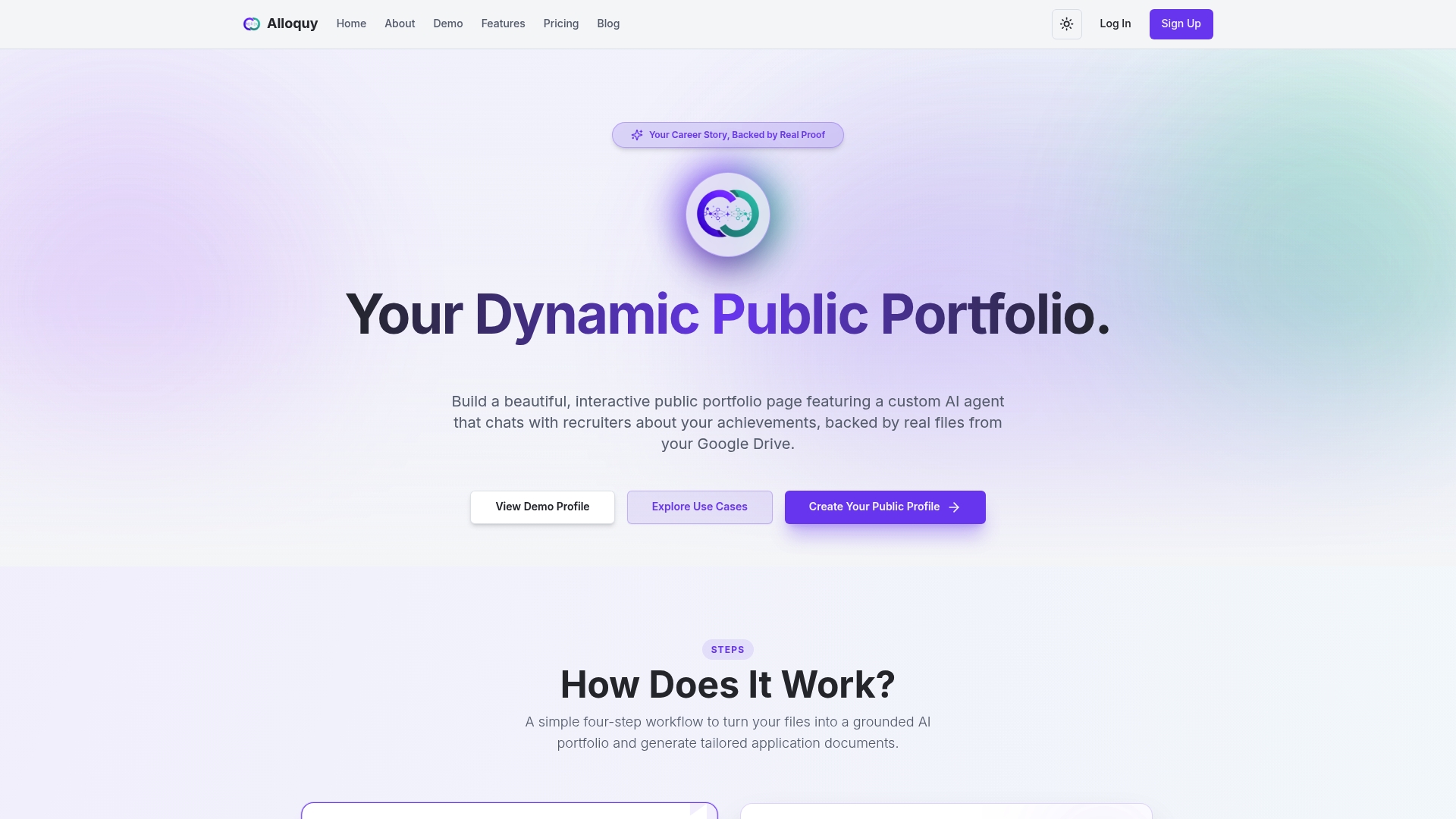
Where a static page leaves recruiters to draw their own conclusions, Alloquy’s AI Q&A layer lets them query your verified work directly, reducing the gap between a scan and a substantive conversation. The platform handles the mobile-first load requirements, short URL control, and privacy settings that the testing checklist above demands. For professionals ready to move beyond a PDF link, Alloquy’s pricing plans start with a free tier and scale to full evidence storage, AI generation, and custom branding.
Sources
The sources below informed this guide’s research findings, practical recommendations, and tool references.
- Clemson University ePortfolio pedagogical study (ERIC)
- Electronic portfolios as job search tools: perspectives from students, career counselors, and HR professionals
- Use of ePortfolios for making hiring decisions — Emerald
- Portfolio QR Codes: Share Your Work with One Scan — QRCodeChimp
- Pro portfolio sharing QR code generator for creatives | QR Code Developer
- The Top Ways To Use QR Codes on a Resume — Bitly blog
- Free QR Code Generator: Create unlimited QR codes — Canva
- Free QR Code Generator - Create Custom, Branded QR Codes — Adobe Express
FAQ
How do you make a QR code for a portfolio?
Choose your portfolio destination URL, shorten it with a redirect you control, then generate a dynamic QR code using a tool like Canva or Adobe Express. Export at 300 DPI (PNG) or as an SVG, test on iOS and Android, and add a one-line CTA near the code before placing it on your resume or card.
Can you generate a portfolio QR code for free?
Yes. Canva and Adobe Express both offer free QR code generation with color customization and PNG downloads. Free tiers on most generators produce static codes; dynamic codes with scan analytics typically require a paid plan.
What should a QR code on a resume link to?
Link to a curated project page or an interactive portfolio profile rather than a generic homepage. Employers are more likely to engage with a portfolio when the destination is immediately relevant to the role and loads quickly on mobile.
How do you get a QR code for an Adobe Portfolio or Behance profile?
Copy your public Adobe Portfolio or Behance URL, paste it into a QR generator such as Adobe Express or Canva, and download the code. For long-lived assets like resumes, route the QR through a redirect domain you control so you can update the destination if you migrate platforms.
What is the difference between a static and a dynamic portfolio QR code?
A static QR code encodes the URL directly; changing the destination requires a new code and reprinting. A dynamic QR code points to a redirect you control, so you can update the destination at any time without touching the printed asset, and it provides scan analytics.
Recommended
- Proof Without Exposure: Showcase Your Work Without Compromising Privacy or Credibility | Alloquy Blog | Alloquy
- Alloquy: Your Interactive AI-Powered Portfolio
- The 2026 Professional Verification Stack: Cloud Storage Meets Career Assets | Alloquy Blog | Alloquy
- Why Multi-Format Resume Assets Are Key to Modern Job Search Success | Alloquy Blog | Alloquy