

Yes, Google Docs can produce a polished, recruiter-ready portfolio, provided you use a proper template as your base and apply a few deliberate formatting rules rather than typing into a blank document. Three moves get you there fastest: pull an editable template instead of starting from scratch, set your page dimensions and margins before you add content, then share it as a view-only link or export it as a PDF so formatting survives contact with a recruiter’s inbox.
- Download a portfolio-specific Google Docs template (not a generic resume file).
- Fix page setup, margins, and heading styles before you add a single project.
- Share with “Anyone with the link can view” or export to PDF for ATS-facing applications.
Roughly half of all portfolio views now happen on a phone screen, according to The Complete Design Portfolio Guide, which changes almost every formatting decision below. Google Docs also has no built-in accessibility audit tool, so checking your layout against WCAG contrast standards is on you, not the software.
Key Takeaways
A well-formatted Google Docs portfolio combines a proper template, consistent heading styles, the Invisible Grid layout technique, and view-only sharing to look and function like a professionally designed document.
| Point | Details |
|---|---|
| Start from a template | Use TheGoodocs, Template.net, or Envato Elements instead of a blank document to save formatting time. |
| Fix structure before content | Set page setup, styles, and the Invisible Grid table layout before adding text or images. |
| Lead case studies with outcomes | Structure every project page as Problem, Approach, Impact so results surface immediately. |
| Design for mobile first | Compress images, use single-column stacking, and test on an actual phone before sharing. |
| Consider an interactive upgrade | Alloquy turns verified Google Drive evidence into a recruiter-facing AI profile when a static document isn’t enough. |
Table of Contents
- Where to Find Editable Google Docs Portfolio Templates
- What Pages Should a Google Docs Portfolio Include?
- How Do You Format a Google Docs Portfolio Step by Step?
- What’s the Best Structure for a Case Study Page?
- How Do You Format Images for a Mobile-Friendly, Accessible Portfolio?
- How Do You Share and Export a Google Docs Portfolio?
- What Formatting Hacks Save the Most Time?
- How Do You Keep File Size Manageable Across a Multi-Image Portfolio?
- How Should You Use Tables and Columns to Organize Content?
- Can You Add Hyperlinks and Embedded Videos to a Google Docs Portfolio?
- How Do You Manage Version Control and Collaboration in Google Docs?
- Why Google Docs Still Makes Sense for Many Professionals
- Ready for a Portfolio That Answers Questions on Its Own?
- Sources
- FAQ
Where to Find Editable Google Docs Portfolio Templates
Skip the blank document. Google’s own template gallery has a handful of resume and report layouts that work as a portfolio skeleton, but three other sources cover the gaps.
- Google Docs template gallery: built-in, zero download friction, best for simple resume-style portfolios with light branding.
- TheGoodocs: free, downloadable portfolio templates spanning creative, architecture, teaching, and engineering fields. Good when you need a full multi-page layout without paying anything.
- Template: a mix of free and premium editable Google Docs portfolio templates. The premium tier is worth it if you need a highly designed, visual-heavy layout fast.
- Envato Elements: page layout files built for print production, including A4 and US Letter sizing with bleed, useful when you need a portfolio that also works as a printed leave-behind.
Pro Tip: Pick a template that already matches your target structure, grid-based, single-column, or case-study-first, rather than one that just “looks nice.” Restructuring a template’s underlying layout takes longer than reformatting text inside a structure that already fits.
To repurpose any of these, make a copy into your own Drive first, reset the margins to your target size, then swap out placeholder images before touching the text. Editing text into a template designed for different content almost always breaks the spacing.
What Pages Should a Google Docs Portfolio Include?
A portfolio built for hiring managers needs a specific set of pages, not a random collection of project screenshots. The Complete Design Portfolio Guide lays out the anatomy that consistently performs, and it holds whether you’re a designer, engineer, or freelance writer.
- Home or cover page: your name, one-line positioning statement, and a visual index of what’s inside.
- About: a short narrative on your background and specialty, not a full biography.
- Case studies: the core of the document. A few case studies are enough to show range without diluting attention on your strongest work.
- Resume: a text-based summary that recruiters can scan in ten seconds when they don’t have time for the full narrative.
- Contact: email, LinkedIn, and any scheduling link, placed where it’s visible without scrolling.
Optional pages, testimonials, publications, downloadable assets, belong after the core five, never before your case studies. A tester with quotes at the top and no project evidence reads as unfinished.
How Do You Format a Google Docs Portfolio Step by Step?
Formatting order matters more than most people assume. Set the structural decisions first; text and images should be the last thing you touch.
- Choose page setup. Go to File > Page setup and pick paper size and orientation. For digital-only sharing, switch to Pageless mode under the same menu, which removes hard page breaks and creates a continuous scroll closer to a web page, a format Envato Tuts+ recommends specifically for on-screen reading. For anything you might print, keep standard page breaks and set margins to at least 0.75 inches.
- Build your style set. Set Heading 1 for section titles, Heading 2 for project names, and a body style at a readable point size. Update each style once (Format > Paragraph styles > Options > Update to match), so every future heading applies with one click instead of manual formatting.
- Pick two fonts, max. One for headings, one for body copy. Google Sans, Lato, or Georgia paired with Arial all read cleanly on both desktop and mobile.
- Set your color swatches through Format > Text color > custom, and reuse the same two or three hex values throughout so accents stay consistent.
- Use the Invisible Grid for layout. Insert a table, then set every border to 0pt. This creates stable multi-column zones, image on one side, description on the other, that survive edits and PDF export far better than floating images with wrapped text.
- Lock images inside table cells rather than letting them float freely; floating images shift when text above them changes length.
- Control spacing. Use 1.15 line height and add 6 to 10 points of space after each paragraph. Keep line length under roughly 75 characters for easy reading.
Learn the keyboard shortcuts for pasting without formatting (Ctrl+Shift+V or Cmd+Shift+V) and for repeating your last format (Ctrl+Y). Both save real time once you’re formatting six or seven project pages in one sitting.
Pro Tip: Build your style set and Invisible Grid on page one before duplicating that page for every subsequent case study. Retrofitting formatting across five finished pages takes far longer than setting it once and copying forward.
What’s the Best Structure for a Case Study Page?
Hiring managers skim. A case study that buries the result in paragraph four loses the reader before they get there. Lead with the outcome, then explain how you got there.
Use this field structure for every project page:
- Project title and your role: one line, no ambiguity about what you did versus what the team did.
- Timeline: even a rough range (“6 weeks, Q3 2025”) gives scope context.
- Problem: two or three sentences on what was broken or missing.
- Approach: the actual process, decisions made, tradeoffs considered.
- Impact: the result, quantified if you have the number, described concretely if you don’t.
This Problem to Process to Outcome flow gives hiring managers a consistent scan pattern across every project, so they’re comparing your work, not decoding your formatting each time.
Pro Tip: No metrics available? Don’t fake a number. Use a before-and-after screenshot, a stakeholder quote, or a specific qualitative shift (“reduced support tickets from a daily occurrence to roughly one per week”) instead of a vague claim like “greatly improved.”
How Do You Format Images for a Mobile-Friendly, Accessible Portfolio?
Since close to half your readers are on a phone, image handling isn’t cosmetic, it’s functional. Compress every image before inserting it; aim for a web-friendly resolution suitable for screen viewing and to keep your file size manageable. Insert images inside table cells rather than as floating objects, so alignment holds steady as you edit surrounding text.
- Run images through a compressor before upload; an uncompressed screenshot can be five to ten times larger than it needs to be.
- Add alt text to every image (right-click > Alt text) for screen reader compatibility and basic WCAG contrast compliance on color choices.
- Keep body text at a size equivalent to 16px on desktop; anything smaller strains readability on a phone.
- Design mobile-first: build your layout assuming a single narrow column, then adapt outward, not the reverse.
Pro Tip: Test your finished document on an actual phone, not just a resized browser window. Table-based layouts sometimes behave differently on native mobile apps than they do in desktop Chrome’s mobile emulator.
How Do You Share and Export a Google Docs Portfolio?
Formatting only matters if the recruiter can actually see it the way you built it.
- Click Share, set access to “Anyone with the link can view,” and confirm before sending, a document stuck on “request access” is a lost read.
- Use a descriptive file name (YourName-Portfolio-2026) instead of “Untitled document,” since that name often carries into email previews.
- Export a PDF version (File > Download > PDF) for any application going through an ATS or corporate review process, where a live Google link may get stripped or blocked.
After exporting, open the PDF and check that table borders stayed invisible, hyperlinks still work, and no image shifted position. Google Docs’ own organizing approach treats the main document as an index, linking out to individual pieces, which works well if you’re keeping a living portfolio you update often, since document history in Google Drive lets you track every change without a separate version-control system.
What Formatting Hacks Save the Most Time?
A few habits compound across a multi-page document.
- Use Format > Paragraph styles > Options > Save as my default styles so every new document you start inherits your heading and body settings.
- Use the Explore tool sparingly for quick image searches, but always replace with your own screenshots for real projects.
- Third-party image compressors (TinyPNG or Squoosh) shrink file size before upload without visible quality loss.
- A font-pairing tool speeds up choosing two fonts that actually work together, rather than guessing.
- Copy a fully formatted section (Invisible Grid table, heading styles, spacing) and paste it as the starting shell for your next case study page instead of rebuilding from zero.
How Do You Keep File Size Manageable Across a Multi-Image Portfolio?
A portfolio with fifteen full-resolution screenshots can balloon past 20MB, slow enough that some recruiters give up before it loads. The fix starts before you ever insert an image: compress every screenshot to a web-appropriate resolution first, rather than relying on Google Docs to shrink it after the fact, since Docs does not meaningfully recompress inserted images on its own.

Crop images to their actual content before inserting them. A screenshot with excess white space or browser chrome adds file weight for zero visual benefit. Where you’re showing a full webpage or app screen, crop tightly to the relevant section and note in the caption that it’s a partial view.
If your portfolio is genuinely image-heavy, split it. A single 25-page document with forty screenshots is slower to load and harder to navigate than three shorter documents, each with a project or two, linked from a lightweight index page. This mirrors the linking approach recommended for writing portfolios: keep a lean main document and link out to heavier individual pieces rather than stacking everything into one file.
Before sharing, open your document in an incognito window to see real load time, not the cached version your own browser already has stored.
How Should You Use Tables and Columns to Organize Content?
Native Google Docs “columns” (Format > Columns) apply to the entire page rather than a specific section, which makes them clumsy for portfolios where you want, say, an image and caption side by side just once. This is exactly why the Invisible Grid, a table with borders set to 0pt, has become the standard workaround: it gives you column-like control over any single block of content without affecting the rest of the page.
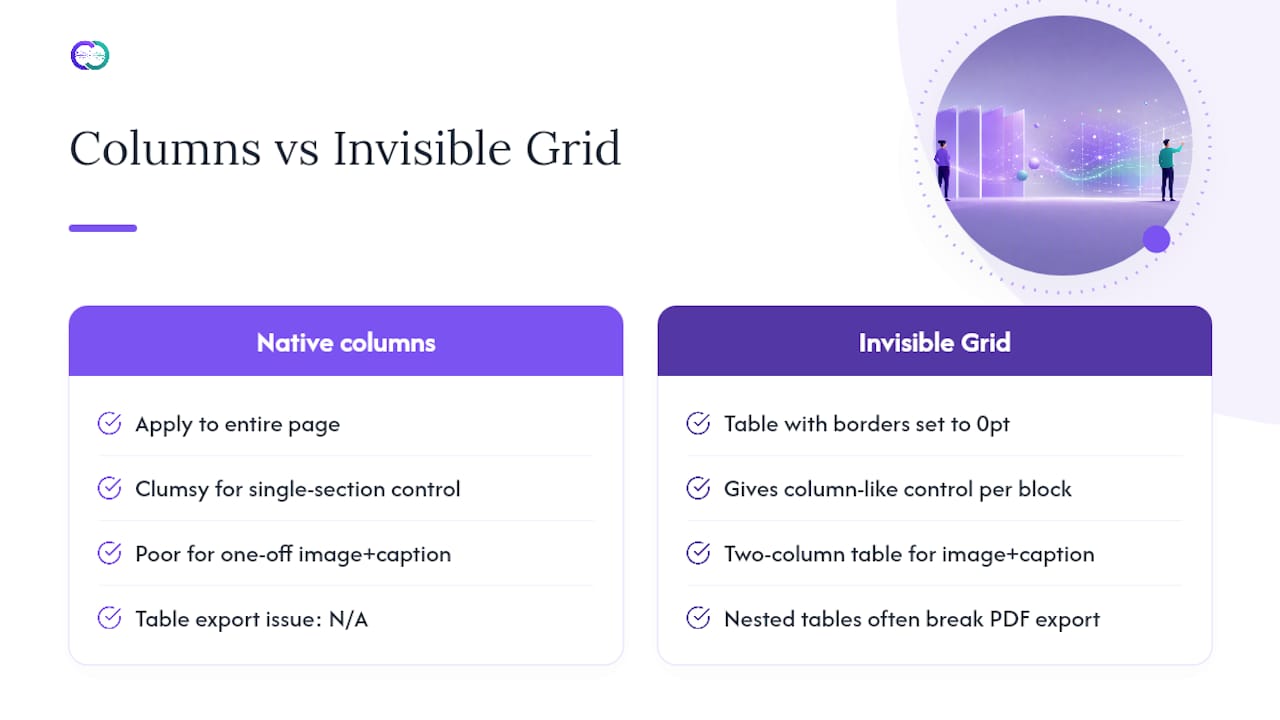
Use a two-column table for image-plus-description pairs, a three-column table for comparing before-and-after states, and a single-cell table when you just need a bordered visual break between sections. Keep table widths consistent across pages so your layout doesn’t visually jump as a reader scrolls from one case study to the next.
One caution: nested tables (a table inside a table cell) frequently break during PDF export, shifting content or introducing unwanted borders. Keep your table structure flat, one layer, whenever possible, and test a PDF export after any table-heavy page to confirm it held.
Can You Add Hyperlinks and Embedded Videos to a Google Docs Portfolio?
Hyperlinks work exactly as you’d expect: highlight text, use Ctrl+K (or Cmd+K on Mac), and paste your URL. Link project titles to live sites, link “View full case study” text to a separate Google Doc, and link your contact page directly to a scheduling tool rather than making someone copy an email address by hand.
Google Docs doesn’t support a true embedded, playable video. What it does support is a linked thumbnail: insert a screenshot of your video’s first frame, then hyperlink that image to the YouTube or Vimeo URL. Label it clearly (“Click to watch: 90-second product demo”) so a reader knows to click rather than assuming it’s a static image.
For writing samples or long-form work you don’t want duplicated inside your main document, link out to the original piece with view-only sharing enabled rather than pasting the full text in. This keeps your portfolio document lean and gives you a single source of truth to update later. A ghostwriting portfolio structured this way, linking to hosted samples rather than reproducing them, shows how effective a lightweight index-and-link approach can be for writing-heavy work.
How Do You Manage Version Control and Collaboration in Google Docs?
Google Drive’s built-in document history (File > Version history > See version history) tracks every edit automatically, no separate tool required. Name key milestones (“Added Q1 2026 case study”) so you can jump back to a specific state if a later edit breaks your layout.
If you’re collecting feedback from a mentor or colleague before sending your portfolio out, use Suggesting mode instead of direct editing, so their input stays visible and reversible rather than overwriting your formatting choices. Comment threads resolve cleanly once addressed, keeping the document itself clutter-free for the next reader.
For anyone drafting long-form case studies who wants a cleaner audit trail of their own writing process, a tool like FinalDraft’s edit-history approach illustrates a similar principle applied to writing workflows specifically: preserve the revision path, not just the final draft. Inside Google Docs itself, that same discipline just means naming your version checkpoints and reviewing history before a major resend, rather than trusting memory for what changed and when.
Why Google Docs Still Makes Sense for Many Professionals
Google Docs remains one of the most accessible ways to build a portfolio: no design software, easy updates, and instant sharing make it well suited to writing-heavy case studies and fast-moving job searches. Where it runs short is interactivity. If you need recruiters to ask follow-up questions, see verified evidence tied to real work, or track engagement, an interactive portfolio platform fills that gap without asking you to abandon the writing you’ve already done in Docs.
Ready for a Portfolio That Answers Questions on Its Own?
A static Google Doc shows your work; it can’t discuss it. Alloquy connects directly to your Google Drive and turns your documents, case studies, and files into an interactive profile where a custom AI assistant answers recruiter questions using your actual, verified evidence instead of a static page they have to scroll through alone. Every answer stays grounded in the work you’ve actually done, not a generic summary.
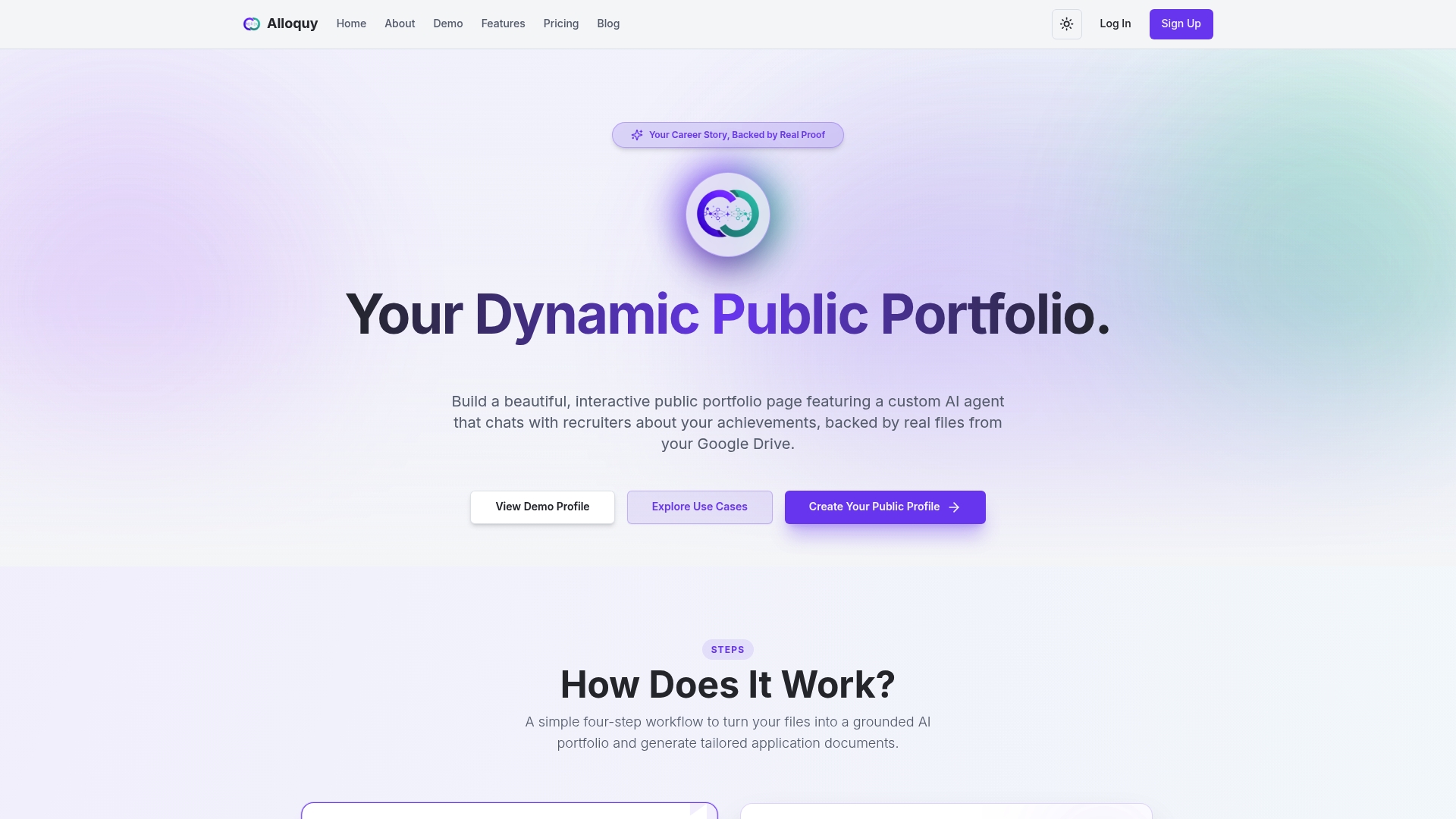
If your Google Docs portfolio has gotten you interviews but recruiters keep asking follow-up questions your document can’t answer, that’s the exact gap an interactive profile closes. Compare plans on the Alloquy pricing page and see which tier matches how much evidence you need to link.
Sources
- How to Make Awesome Page Layouts in Google Docs | Envato Tuts+
- The Complete Design Portfolio Guide (2026): From Zero to Hired
- Template
- Free Portfolio Templates for Google Docs and Word — TheGoodocs
FAQ
Is There a Portfolio Template on Google Docs?
Yes. Google’s own template gallery has resume and report layouts you can adapt, and free libraries like TheGoodocs offer dedicated portfolio templates across multiple professions.
What Is the Best Format for a Portfolio?
The best format leads with outcomes, includes Home, About, Case studies, Resume, and Contact pages, and uses consistent heading styles so recruiters can scan it in under a minute. For digital-only sharing, Pageless mode creates a smoother reading experience than fixed page breaks.
How Do You Format Properly in Google Docs?
Set page setup and margins first, define your heading styles once and reuse them, then use zero-border tables (the Invisible Grid) for any multi-column or image-plus-text layout.
How Do You Make a Portfolio Format That Works on Any Device?
Design single-column first, compress every image to a web-friendly resolution, and confirm the layout holds by testing on an actual phone before sending the link. If you want that same evidence to answer recruiter questions interactively instead of just sitting in a document, an AI-powered portfolio can extend a Google Docs foundation into something recruiters can query directly.